Eventstream is a feature in Microsoft Fabric’s Real-Time Intelligence. It lets you:
- Bring in real-time data (like sensor data, live app data, or messages from devices).
- Process or transform the data (example: filter, group, or change the format).
- Send the data to other Fabric tools like Lakehouse, Eventhouse, or even your custom apps.
The best part is you can do all these using a drag and drop tool.
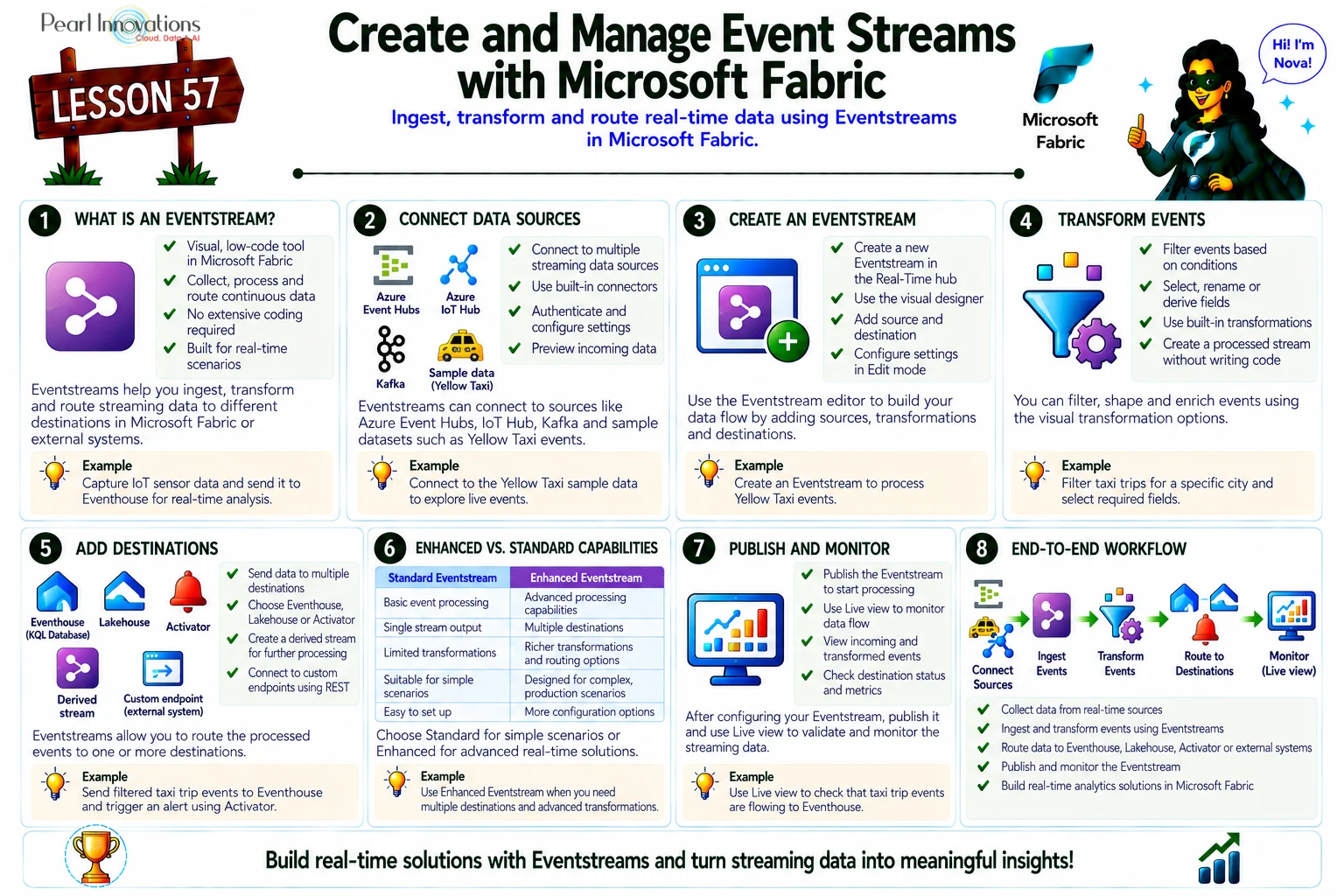
🚀 Learn It in 5 Minutes
Skip the long read.
See the key concepts in one easy-to-follow infographic.
Bring data (Events) into Fabric
You can connect many different sources to Eventstream, such as:
- Azure Event Hub – for app or IoT events
- Azure IoT Hub – for device/sensor data
- Azure Service Bus, Event Grid, Kafka, Amazon Kinesis, and more
- Even sample data (like Taxi rides or Stock Market) to practice
In Event stream you have Enhanced and Standard Capabilities.
If you enable Enhanced Capabilities when you create an Eventstream, you get even more options.
Transform data (Events) in fabric
You can easily set up how your event data is handled, changed, and sent to the right place by just using a visual tool, no need to write any code. In an Eventstream, a full diagram shows how the data moves and is arranged, making it easy to understand. The event processor tool lets you build this setup by simply clicking and moving blocks around. Once the data comes into the Eventstream, you can:
- Filter the data (example: only keep temperature > 30°C)
- Manage fields (add/remove/rename fields)
- Group by time or values
- Join data from two streams
- Aggregate values (like average, min, max) and more…
All of this can be done using a simple visual interface. No need to write any code.
Below image shows different transformations available in Event stream.
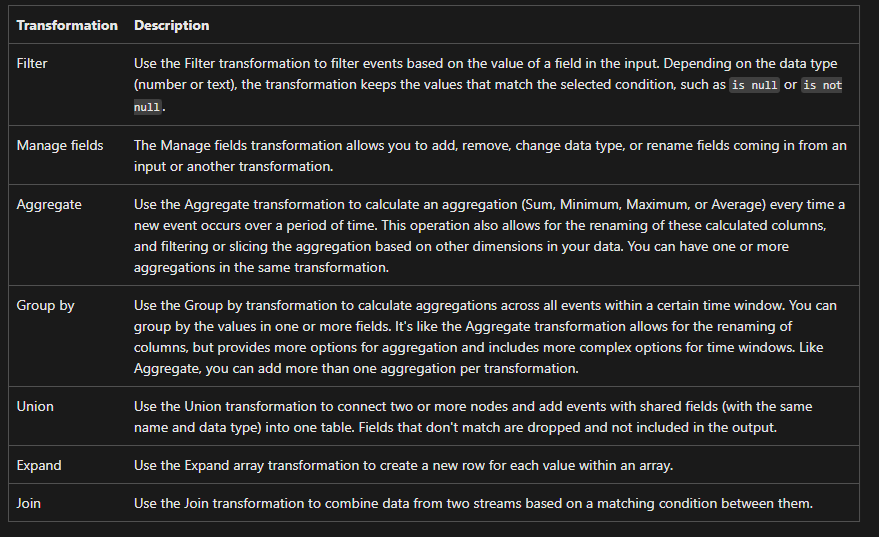
Source: Microsoft Learn
Sending Data (Events) to different destinations
After processing, you can send (or “route”) the data to different places:
- Lakehouse – to store and analyse the data
- Eventhouse – to query using Kusto Query Language (KQL)
- Custom app – to send it to your own application
- Fabric Activator – to trigger actions automatically
- Derived streams – if you want to send only processed (filtered/cleaned) data
You can attach multiple destinations in an eventstream to simultaneously receive data from your eventstreams without interfering with each other.
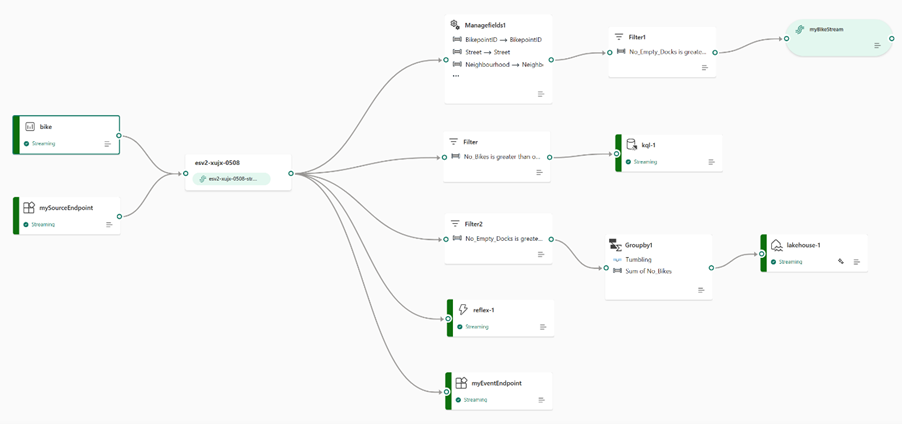
Source: Microsoft Learn
Key Points to be remembered
- You need at least F4 capacity in Fabric to run Eventstreams smoothly.
- Each message can be up to 1 MB in size.
- Data is kept for up to 90 days.
- Kafka is supported, so you can send or receive events using Kafka protocol.
- Every event will be delivered at least one time.
How to Create an Eventstream (Step-by-Step)
Here’s how you can create your first Eventstream in Microsoft Fabric:
Prerequisites
- Obtain a Microsoft Fabric tenant account with an active subscription. Refer Lesson 3 – Getting started with Microsoft Fabric
- Verify that you have a Microsoft Fabric-enabled Workspace set up and ready for use. Refer Lesson 4 – Fabric Workspaces and how to create one?
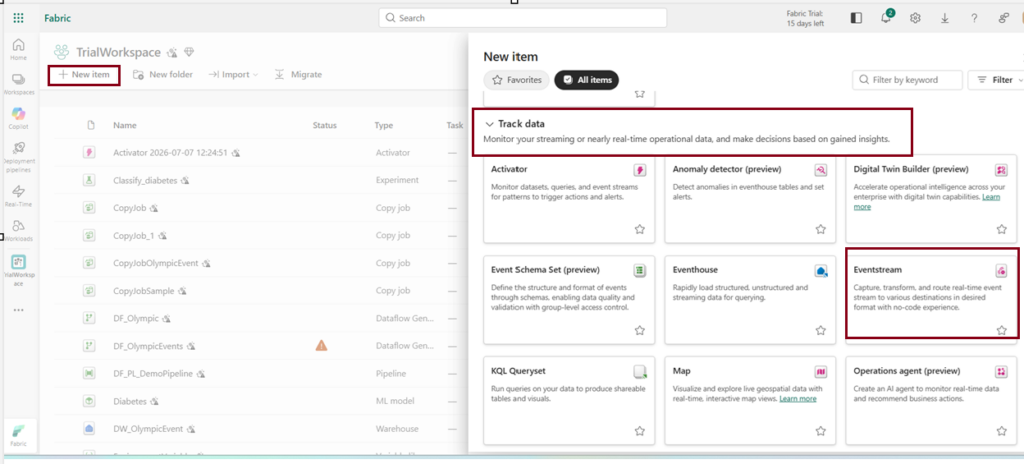
Step 1: Go to Fabric Home
- Open Microsoft Fabric and go to your workspace.
- Click + New items and select Eventstream.
Step 2: Name your Eventstream
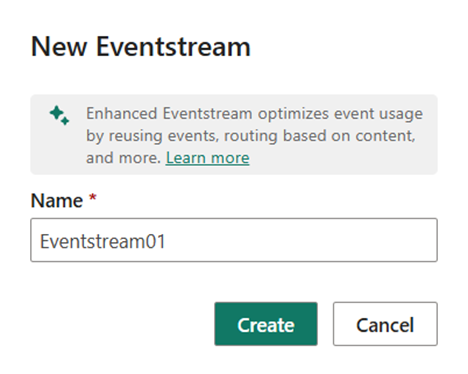
Give your Eventstream a name and click create.
Now the Event stream is created.
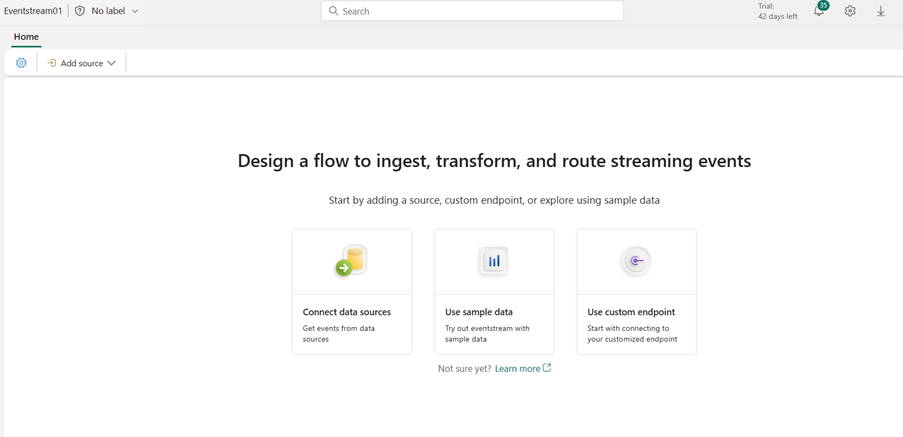
Step 3: Connecting to data sources.
You have multiple data sources to get events inside fabric event stream. Here I choose sample data for demo. This option lets you try pre-loaded data without needing any real devices or apps.
The video below shows the list of available live data sources.
Give name to the source and choose “Yellow Taxi” sample data.
Yellow Taxi data is a sample source you can use to test how the Eventstream works.
It allows you to simulate real-time data streaming in, which you can filter, aggregate, or route to different destinations like Lakehouse or Eventhouse.
It’s also useful for analytics, like figuring out:
- What areas have the highest number of taxi pickups.
- Average ride distance.
- The most popular times for taxis in the city.
- Fare analysis.
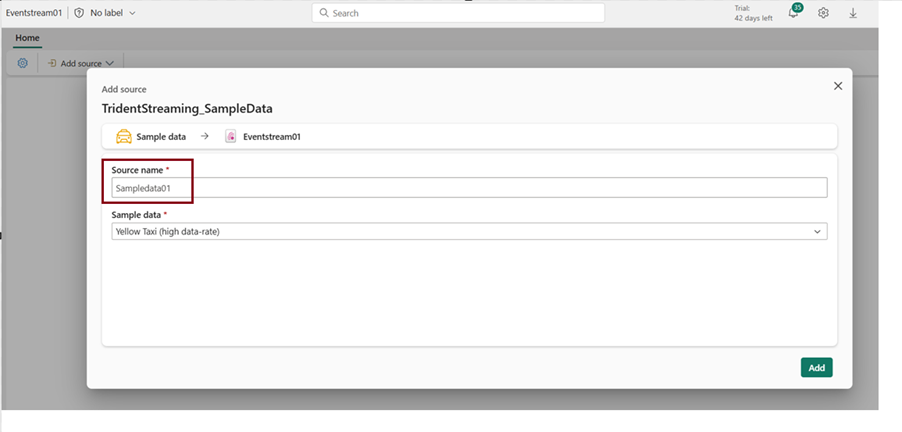
Your stream will be mapped and you will be automatically displayed on the eventstream canvas.
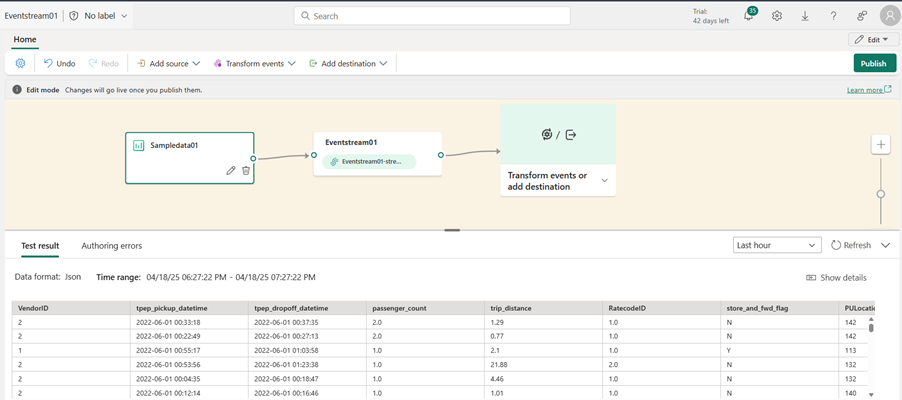
Step 4: Adding Destination
If you want, you can add any transformation in-between or you can directly add the destination.
The below video shows how to add destination to our eventstreams.
Step 5: Adding Transformation
I’ve applied transformation steps by choosing the Filter option. I randomly selected a column named ‘Vendor Id’ and filtered it based on its values and steps applied in which I choosed filter and randomly filter a column “Vendor Id” contains 2 .
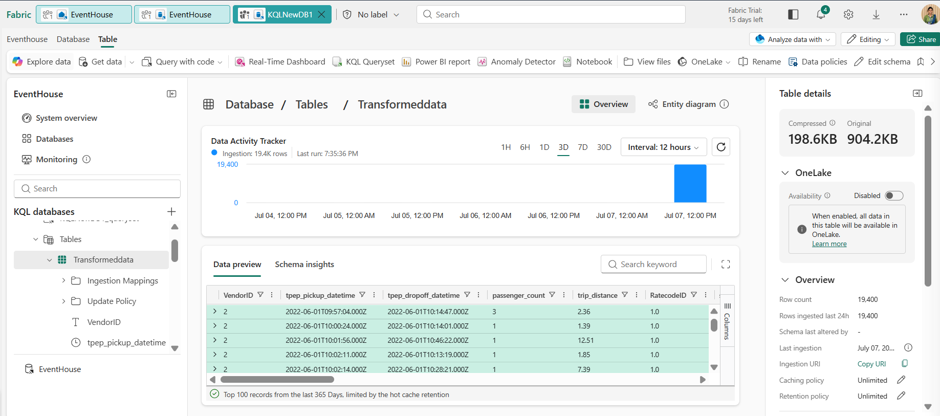
Now you can see both Transformed and original yellow taxi data before transformation loaded into Eventhouse inside KQL Database.
Note: Eventhouse is a place in Microsoft Fabric where you can store and analyse real-time event data.
Conclusion
Eventstream in Microsoft Fabric makes it super easy to bring in real-time data, transform it visually, and send it to different destinations like Lakehouse or Eventhouse. Whether you’re using live sources like IoT devices or just testing with sample data like Yellow Taxi, Eventstream helps you build real-time pipelines without writing any code. It’s perfect for monitoring, analytics, and building intelligent apps all within the Fabric platform.
Eventstream’s scope has broadened well beyond IoT/sample data – it now natively bridges operational databases (via DeltaFlow and Mirrored Database Change Feed) into real-time pipelines, closing a gap that previously required custom Spark notebooks.
| Tags | Microsoft Fabric |
| Useful Links | |
| MS Learn Modules | |
Test Your Knowledge |
Quiz |