
In this blog, we will explore how SQL Projects can enhance the development lifecycle of Microsoft Fabric Data Warehouse. Whether you are a data engineer, database administrator, or DevOps professional, SQL database projects bring structure, source control, and automation into your Fabric warehouse workflows.
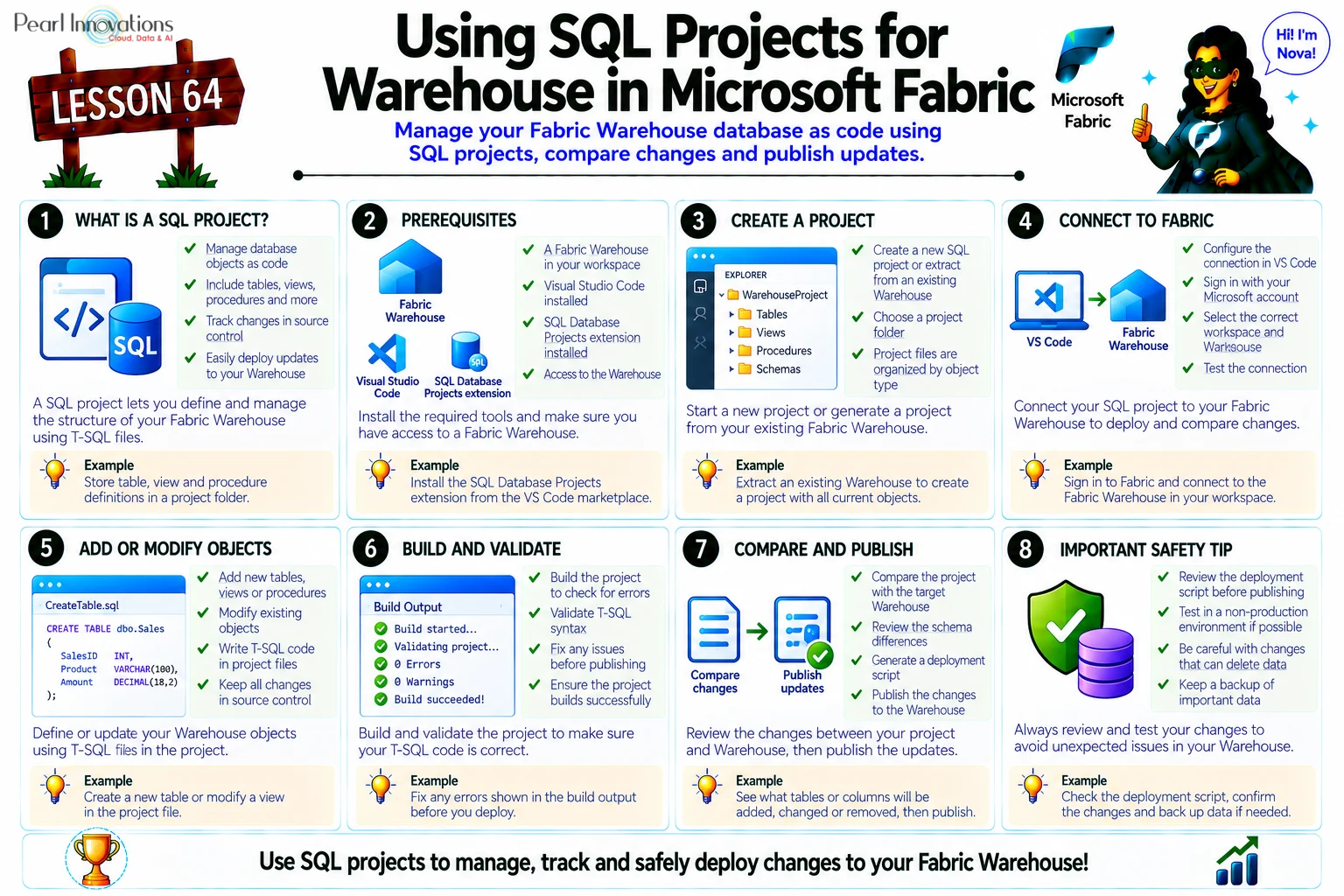
🚀 Learn It in 5 Minutes
Skip the long read.
See the key concepts in one easy-to-follow infographic.
What are SQL Database Projects?
SQL Database Projects are a development approach where the database schema and objects like tables, views, and stored procedures are managed as code.
Previously it was popular in on-premises SQL Server and Azure SQL environments, SQL Projects are now supported inMicrosoft Fabric through Azure Data Studio or Visual Studio code’s SQL Database Projects extension.
Prerequisites
Before getting started, make sure you have:
- Obtain a Microsoft Fabric tenant account with an active subscription. Refer Lesson 3 Getting started with Microsoft Fabric.
- Verify that you have a Microsoft Fabric-enabled Workspace set up and ready for use. Refer Lesson 4 Fabric Workspaces and how to create one?
- Download Azure Data Studio or Visual Studio Code
I’ll be using Azure Data Studio for this demo, but you can use VS Code if preferred. - SQL Database Projects Extension (Required for Azure Data Studio)
- Open Azure Data Studio → Click Extensions
- Search for and install: SQL Database Projects.
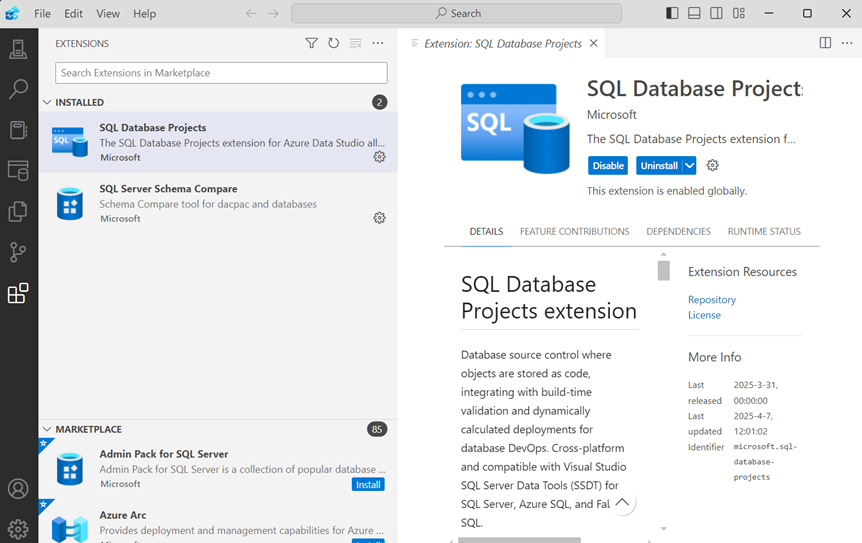
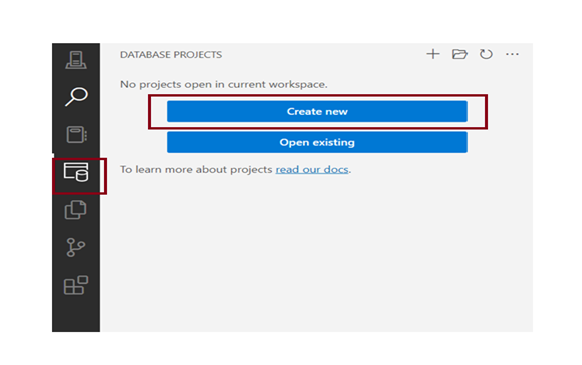
Step 1: Create a New SQL Project
In Azure Data Studio, go to Database projects from the left navigation pane and click “Create New” Database Project.
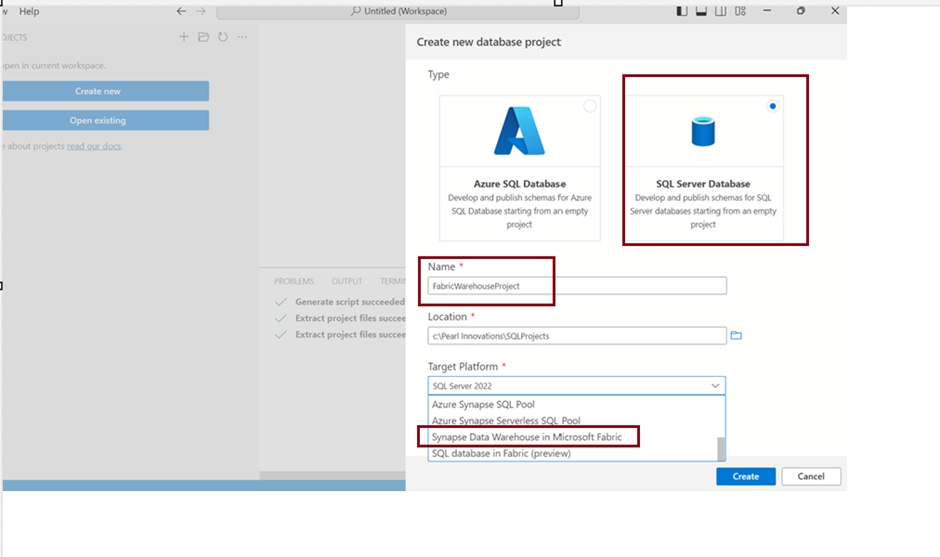
Step: 2 In the create new database project dialog box, fill in the required options. Give a name for database project. choose the folder path to save SQL projects. You now have a .sqlproj file and a folder structure to manage your SQL scripts.
Click create.
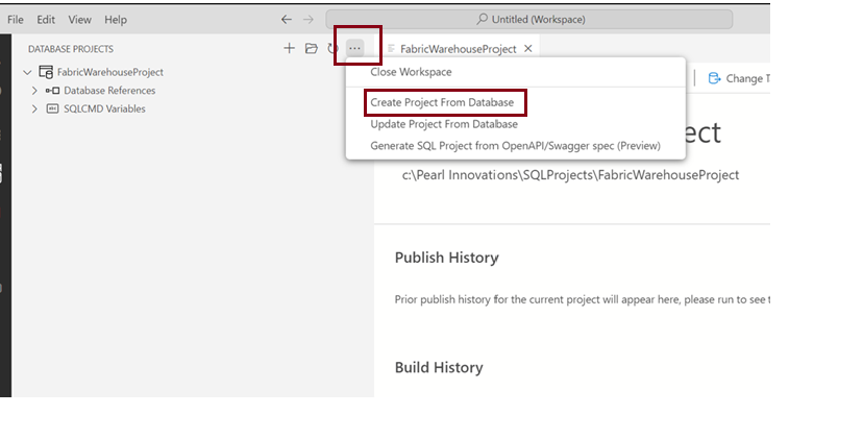
Step 3: Click on the three-dot icon to create a project from the database to establish the connection.
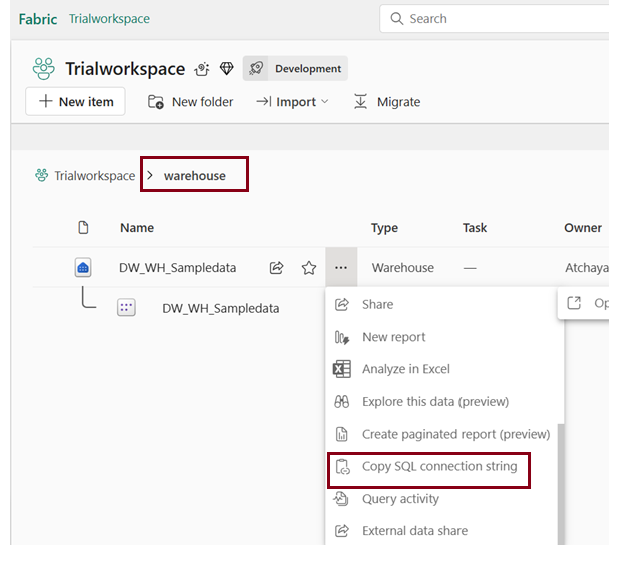
Step 4: Copy the existing warehouse connection string from fabric to import existing warehouse schema.
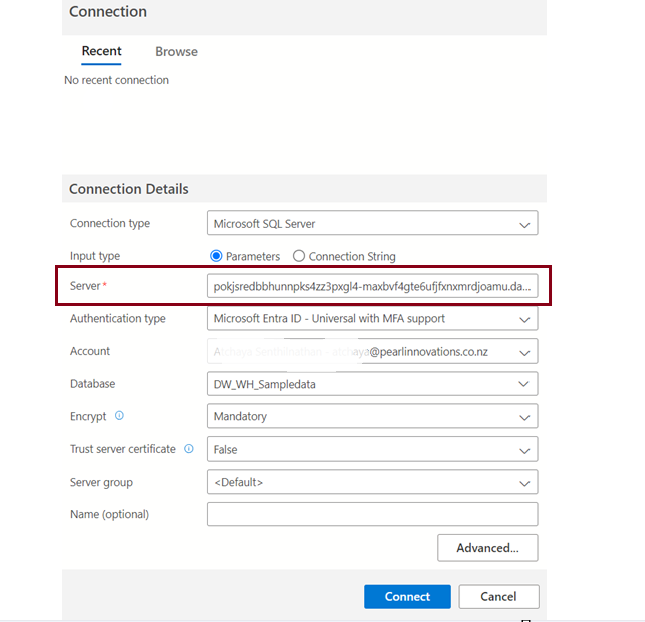
Step 5:
We need to choose parameters even though fabric calls it as “Connection String”
Copy the connection string into server option and now you can choose your warehouse from the list of options in Database.
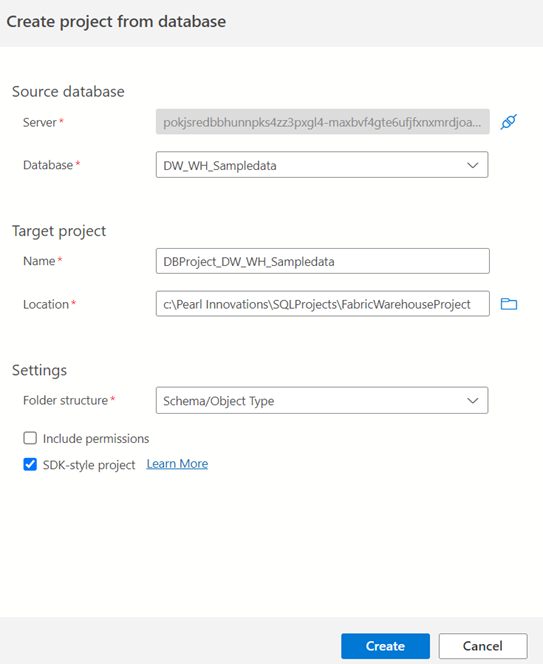
Choose the target folder to save the database project.
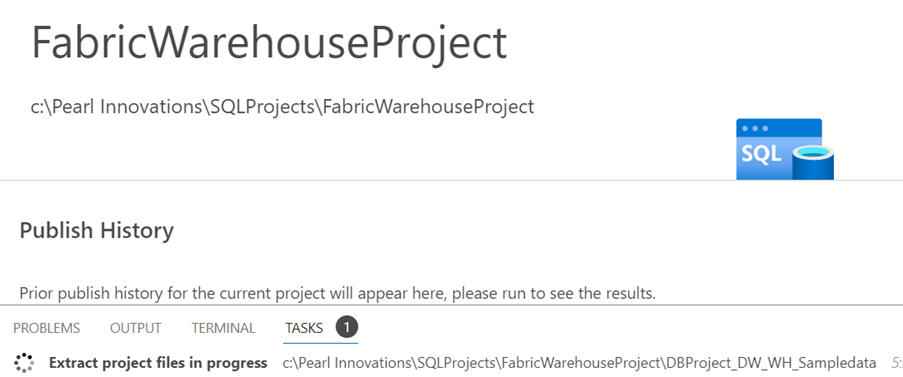
Step 6: Add or Modify SQL Objects
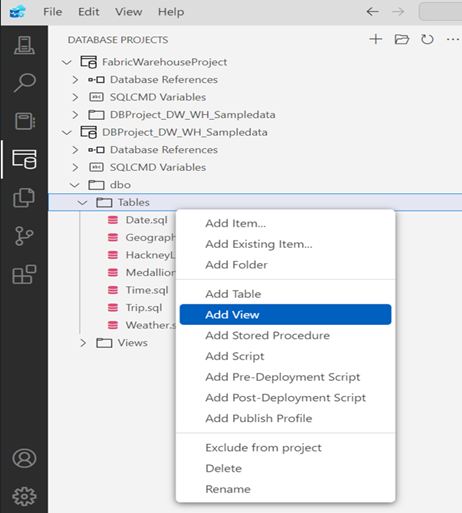
- Inside your project, right-click the Tables or Views folder → Add New Item → Choose object type (e.g., Table).
Write your T-SQL script. For example:
CREATE TABLE DimCustomer (

    CustomerKey INT ,

    FirstName VARCHAR(50),

    LastName VARCHAR(50)

);
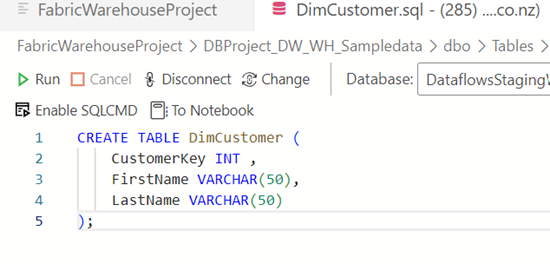
Now the new table has been created. I have also made some changes to the size of the one of the fields.
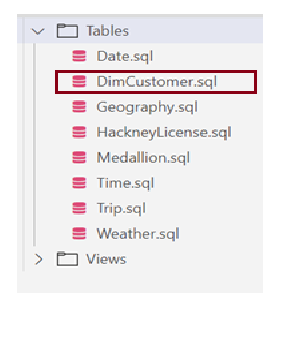
Using schema compare you can compare the changes made to source and target script.
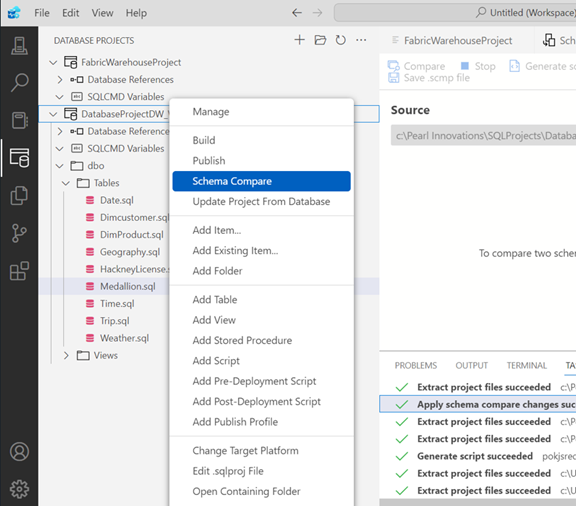
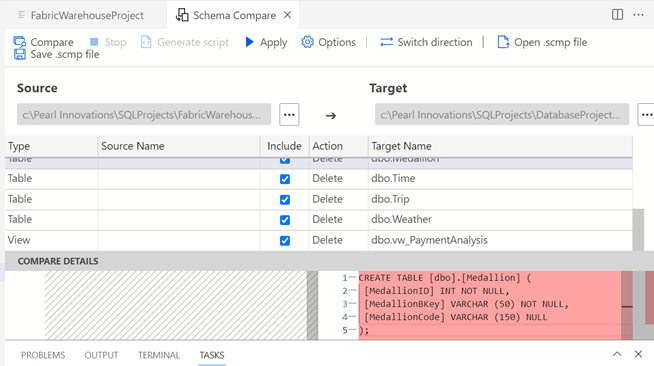
It will compare the source and target and apply the changes when we click apply.
Step 7: Finally, Right-click the project → Click Publish.
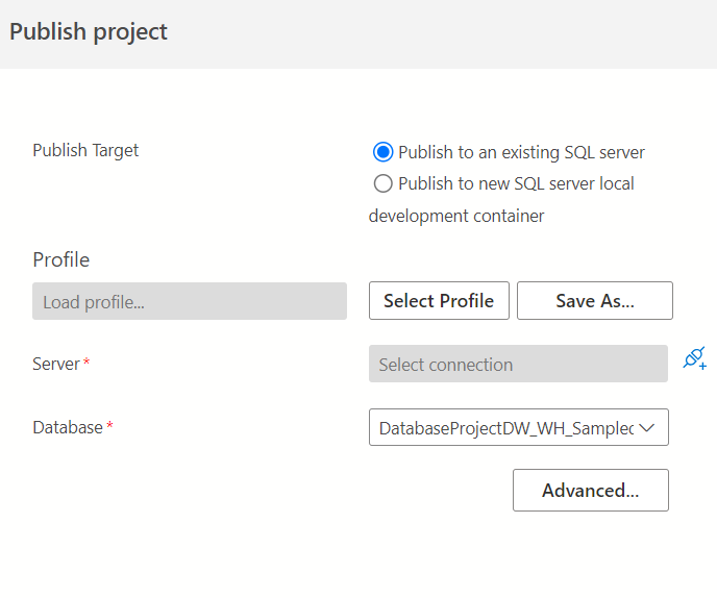
Now we have SQL database project created

Also while creating a warehouse in fabric, we have option to upload a SQL database project.
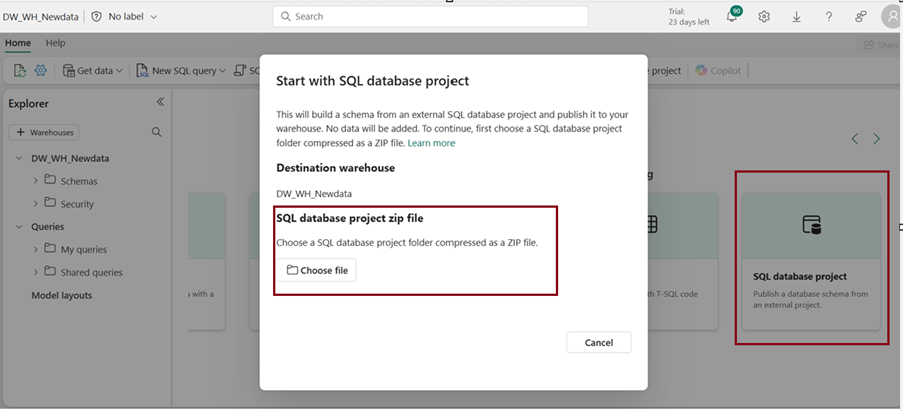
As of now, Git integration is available for specific items within Microsoft Fabric, Microsoft has announced plans to expand Git integration support to include Data Warehouses in the future. Additionally, features like Deployment Pipelines and enhanced CI/CD capabilities are on the roadmap.
Important thing to know before you try this yourself:
If you add or remove a column using the SQL project + Git method taught in this lesson, Fabric currently has to rebuild the table to match your change and that wipes out any data that was already in it. This isn’t something you’re doing wrong; it’s a known limitation Microsoft hasn’t fixed yet. Safest approach: before changing a table’s structure this way, save a copy of your data first (for example using the COPY INTO command), make your change, then load the data back in.
Conclusion
SQL Projects bring structure and automation to Microsoft Fabric Data Warehouse development. By managing your warehouse schema as code, you gain benefits like version control, collaboration, and streamlined deployments. While Git integration for Data Warehouses is currently in preview, Microsoft plans to expand support, enhancing DevOps capabilities within Fabric.
| Tags | Microsoft Fabric |
| Useful Links | |
| MS Learn Modules | |
Test Your Knowledge |
Quiz |