
Microsoft Fabric emerges as a key player, providing developers with the ability to build and deploy data-driven applications effortlessly. A notable enhancement to the development workflow is the Git integration in Microsoft Fabric. This feature enables developers to sync their Fabric workspaces with a Git repository stored in Azure DevOps or GitHub, facilitating seamless collaboration and version control.
This blog explores how Microsoft Fabric and Git collaborate to empower developers, streamlining their development processes.
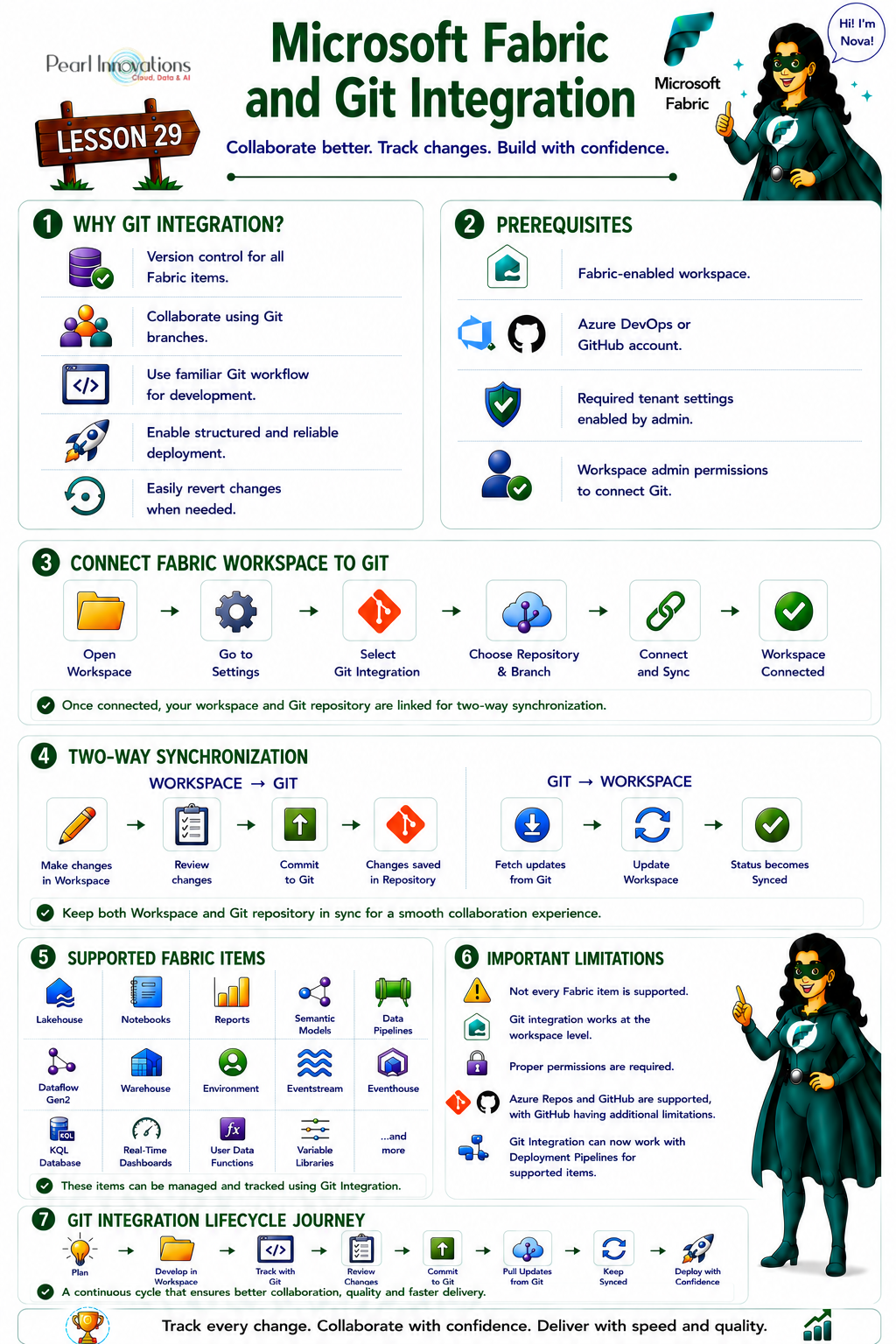
🚀 Learn It in 5 Minutes
Skip the long read.
See the key concepts in one easy-to-follow infographic.
Utilizing Git integration with Fabric offers several advantages
- Version Control for Fabric Items – Track and compare changes across different versions of Fabric items, including reports, notebooks, semantic models, and lakehouses, ensuring robust version control.
- Collaborative Development – Collaborate seamlessly with other developers or work independently by leveraging Git branches, providing a flexible and efficient environment for collaborative development.
- Familiar Development Tools – Utilize well-known tools and processes for the development and deployment of Fabric applications, enhancing developer familiarity and efficiency.
- Structured Deployment Pipelines – Create and manage deployment pipelines for Fabric applications effortlessly using Azure DevOps, ensuring a structured and controlled deployment process.
- Revert to Previous Stages – Effortlessly revert to previous stages as needed, ensuring a flexible development workflow and quick issue resolution.
How to use Git Integration with Fabric?
Follow the below steps to use Git integration with Fabric.
Prerequisite
Before seamlessly integrating Git with your Microsoft Fabric workspace, ensure the following prerequisites are in place for both Azure DevOps and Fabric
- The user managing the Fabric workspace must possess an active Azure account registered in their name. If not, it’s essential to create a free account for integration.
- Acquire a Microsoft Fabric tenant account that includes an active subscription. Refer Lesson 3 Getting started with Microsoft Fabric.
- Or, if using GitHub instead, an active GitHub account with either a fine-grained token (Contents: read/write) or a classic token with repo scope.
- Confirm the existence of a Microsoft Fabric-enabled Workspace that is configured and prepared for utilization. Refer Lesson 4 Fabric Workspaces and how to create one?
- A tenant admin must enable these tenant switches in the Admin portal: “Users can create Fabric items,” “Users can synchronize workspace items with their Git repositories,” and (for GitHub) “Users can synchronize workspace items with GitHub repositories.” Without these, Git integration won’t work regardless of the steps below.
Connect workspace with Azure repo
Connecting a workspace to an Azure Repo requires the role of a workspace admin. Once connected, any authorized user can collaborate within the workspace.
- Launch app.powerbi.com
- Navigate to the workspace you want to connect with.
- Click on Workspace settings.
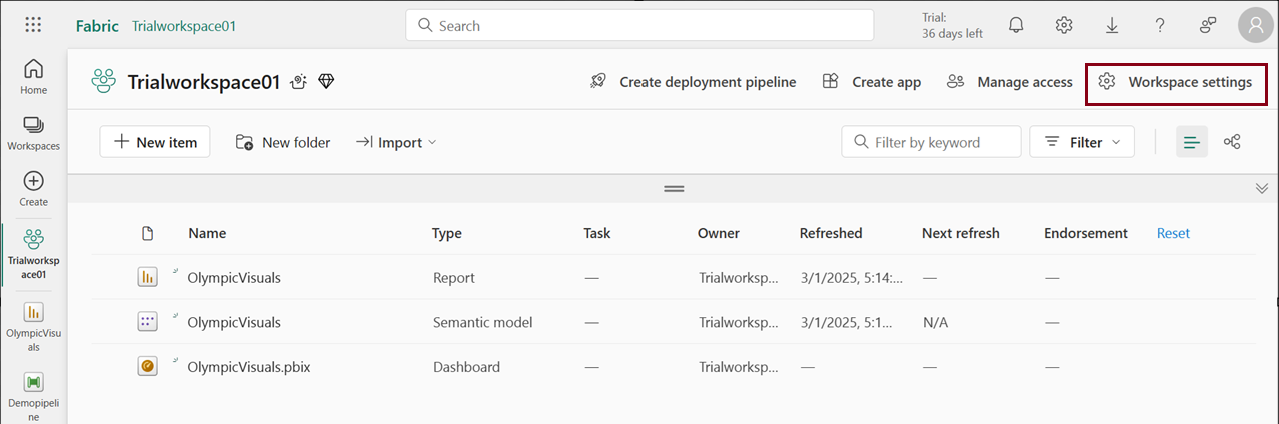
- Choose Git integration, and you’ll be automatically logged into the Azure Repos account registered to the Microsoft Entra user signed into Fabric.
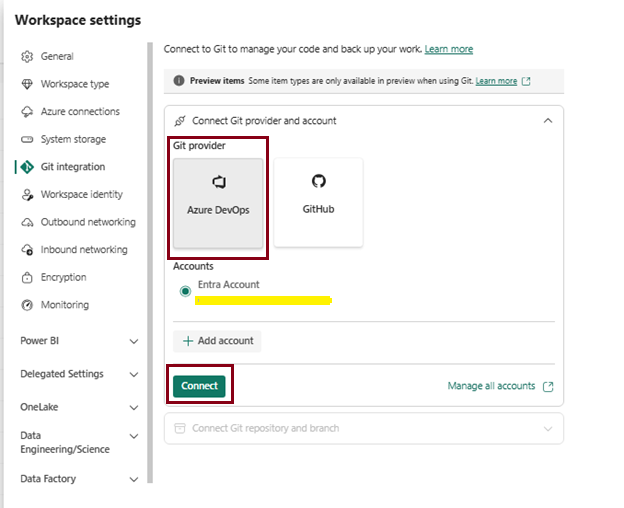
- Choose from drop down menu and fill the following details before connecting
- Complete the process by selecting “Connect and sync.”
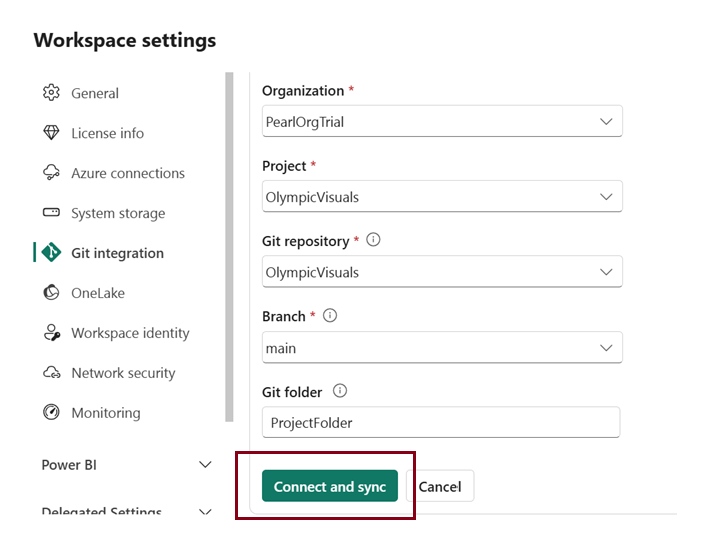
During the initial synchronization, if either the workspace or Git branch is empty, the content is copied from the nonempty location to the empty one. However, if both the workspace and Git branch contain content, you will be prompted to specify the direction of the synchronization.
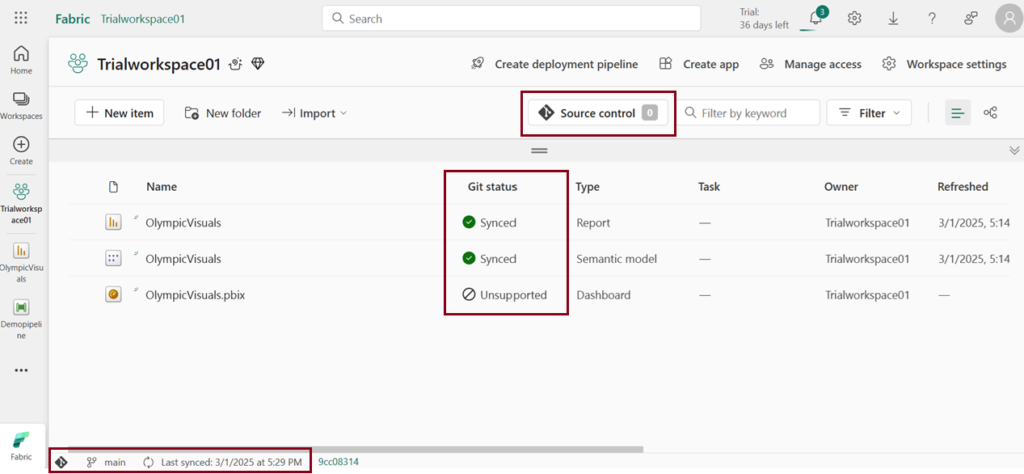
Modify the workspace
Make alterations in the workspace, any modifications you save are exclusively stored within the workspace. Once prepared, you have the option to commit these changes to the Git branch, or alternatively, you can undo the modifications and revert to the previous status.
Commit changes to Git
To implement this modification from the workspace to the Git branch, go back to the workspace home page.
- Navigate to the workspace.
- Select the Source control icon, indicating the number of uncommitted changes (e.g., showing “1” for one change).
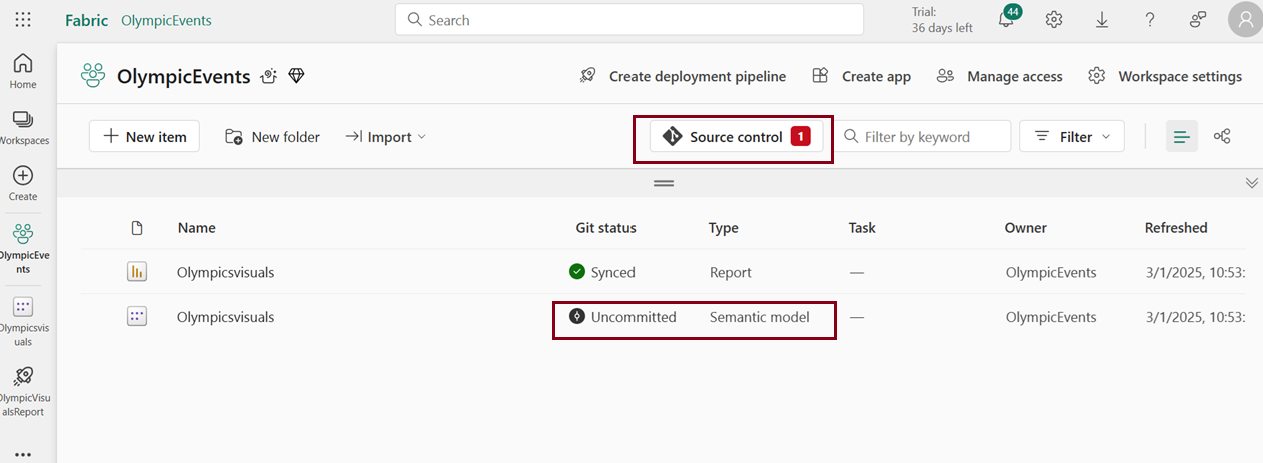
- Choose the Changes tab in the Source control pane. A list will appear featuring all the items you’ve altered, along with icons indicating whether the item is new , modified , conflict , or deleted.
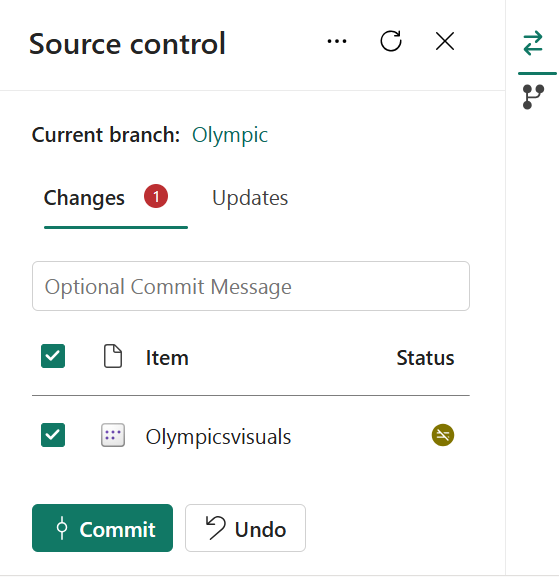
- Choose the items you wish to commit. To select all items, mark the top box.
- Add a comment in the box. If you don’t add a comment, a default message is added automatically.
- Click Commit.
Once the commit is successful, the status of the chosen items shifts from “Uncommitted” to “Synced.”
Update workspace from Git
When a new change is committed to the connected Git branch, a notification appears in the relevant workspace. Utilize the Source control pane to fetch the latest changes, merges, or reverts into the workspace, thereby updating live items.
To update the workspace, follow these steps
- Navigate to the workspace.
- Click Source control which indicates the number of changes made.
- The Olympicsvisuals semantic model exhibits a status of “Uncommitted“.
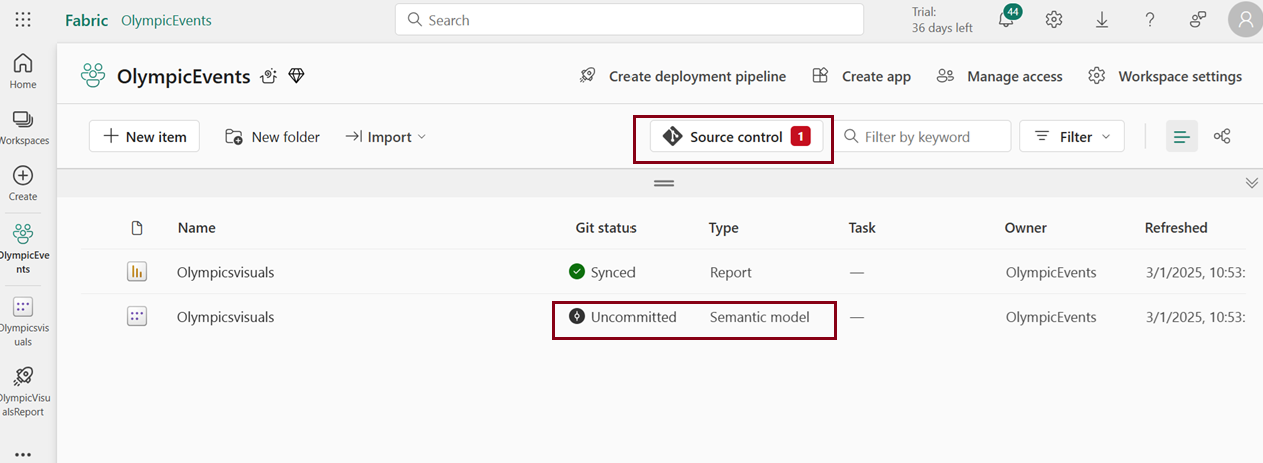
- Select the Updates tab in the Source control pane, displaying a list of items changed in the branch since the last update.
- Choose “Update all.”
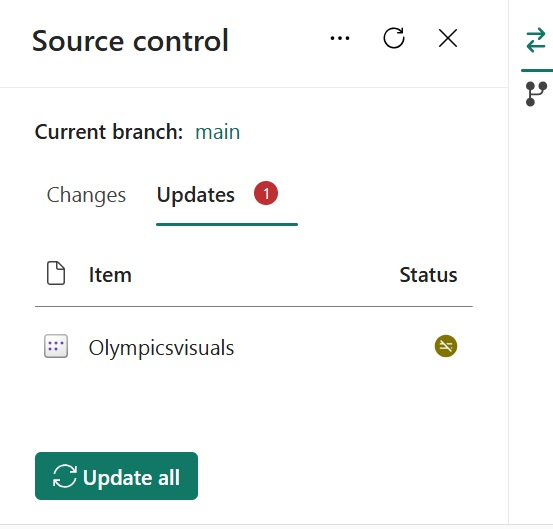
Once the update is successfully executed, the status of the items changes from “uncommitted” to “Synced.”
Disconnect workspace
Note: Only admin has the privilege to disconnect the workspace.
Follow the steps to disconnect the workspace
- Navigate to the workspace.
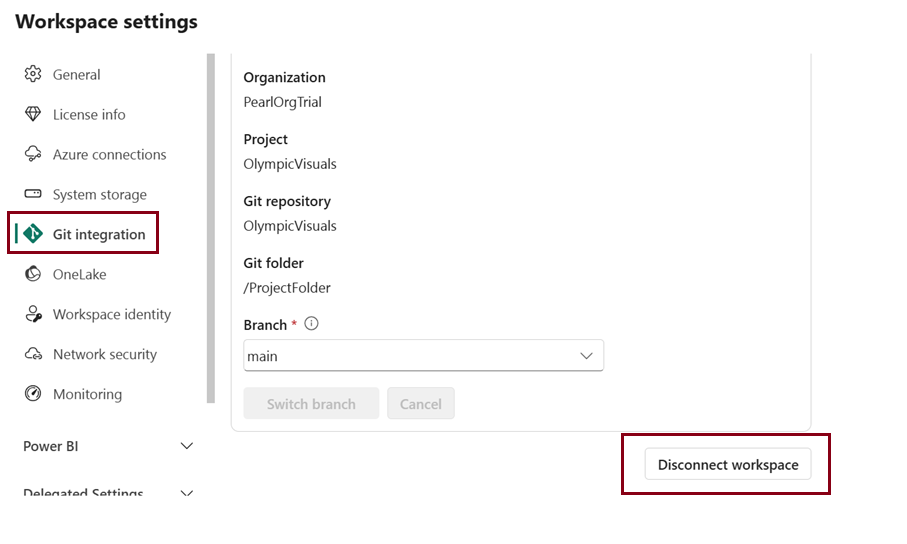
- Click on Workspace settings.
- Select Git integration.
- Select Disconnect workspace.
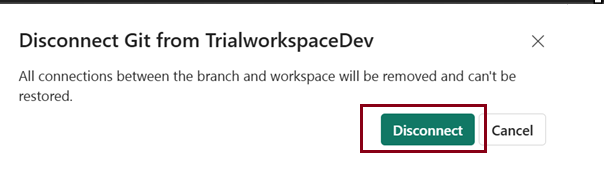
- After initiating the disconnect process, a new window will appear, prompting confirmation to disconnect the workspace. Click on “Disconnect” to confirm.
Supported Fabric Items
- The supported item list has grown substantially. Current supported items include: Lakehouse, Notebooks, Paginated reports, Reports, Semantic models (still with some exclusions push datasets, live connections to Analysis Services, and model v1 aren’t supported), Data pipelines, Dataflow Gen2 (CI/CD), Warehouse, Environment, Eventstream, Eventhouse, KQL Database, Real-Time dashboards, User data functions, and Variable libraries. Check Microsoft’s “Supported item types” list for the full current set, since Microsoft adds items to this list regularly.
Handling unsupported items
Unsupported items within a workspace or Git directory are excluded from the integration’s processes. These items neither save nor synchronize, and although visible in the source control pane, they cannot be committed or updated. They remain present but effectively isolated from the version control process.
Git Integration Limitations in Microsoft Fabric
While Git integration in Microsoft Fabric offers valuable syncing capabilities, it comes with certain limitations that developers should be aware of
- Git Repository Compatibility –It supports both Azure Repos and GitHub (cloud versions only for GitHub — GitHub Enterprise Server and other on-premises/self-hosted setups aren’t supported). On-premises Azure DevOps and sovereign clouds are still excluded. Microsoft still recommends Azure DevOps over GitHub, since GitHub integration currently has more limitations.
- Limited Supported Items – See the expanded list above; still not every Fabric item type is covered, so always check the current supported-items list before relying on Git for a given item.
- Permission Dependencies – Operations depend on both workspace and Azure DevOps roles, requiring a workspace admin for Git connection and contributors for committing changes.
- Workspace-Level Integration – Integration operates at a workspace level, lacking support for syncing individual items or folders within a workspace.
- Compatibility with Deployment Pipelines – The previous limitation regarding using Git integration with Deployment Pipelines has been removed for supported Microsoft Fabric items. Both features can now be used together. However, support may vary by item type, so verify compatibility in your Fabric tenant
| Tags | Microsoft Fabric |
| MS Learn Modules | |
|
Test Your Knowledge |
Quiz |