
This blog guides you on maximizing Microsoft Fabric and MLflow for creating, managing, and applying machine learning models effortlessly. Explore the simplicity of handling data patterns and model versions for effective data-driven outcomes.
Machine learning model in Microsoft Fabric
In Microsoft Fabric, a machine learning model is like a knowledgeable file that learns from data patterns and predicts outcomes. With MLflow 3, a user-friendly tool integrated into Fabric, you can easily create, manage, and use these models. It’s like having a smart assistant for handling all things related to data and AI services in one place, from training models to comparing different versions effortlessly.
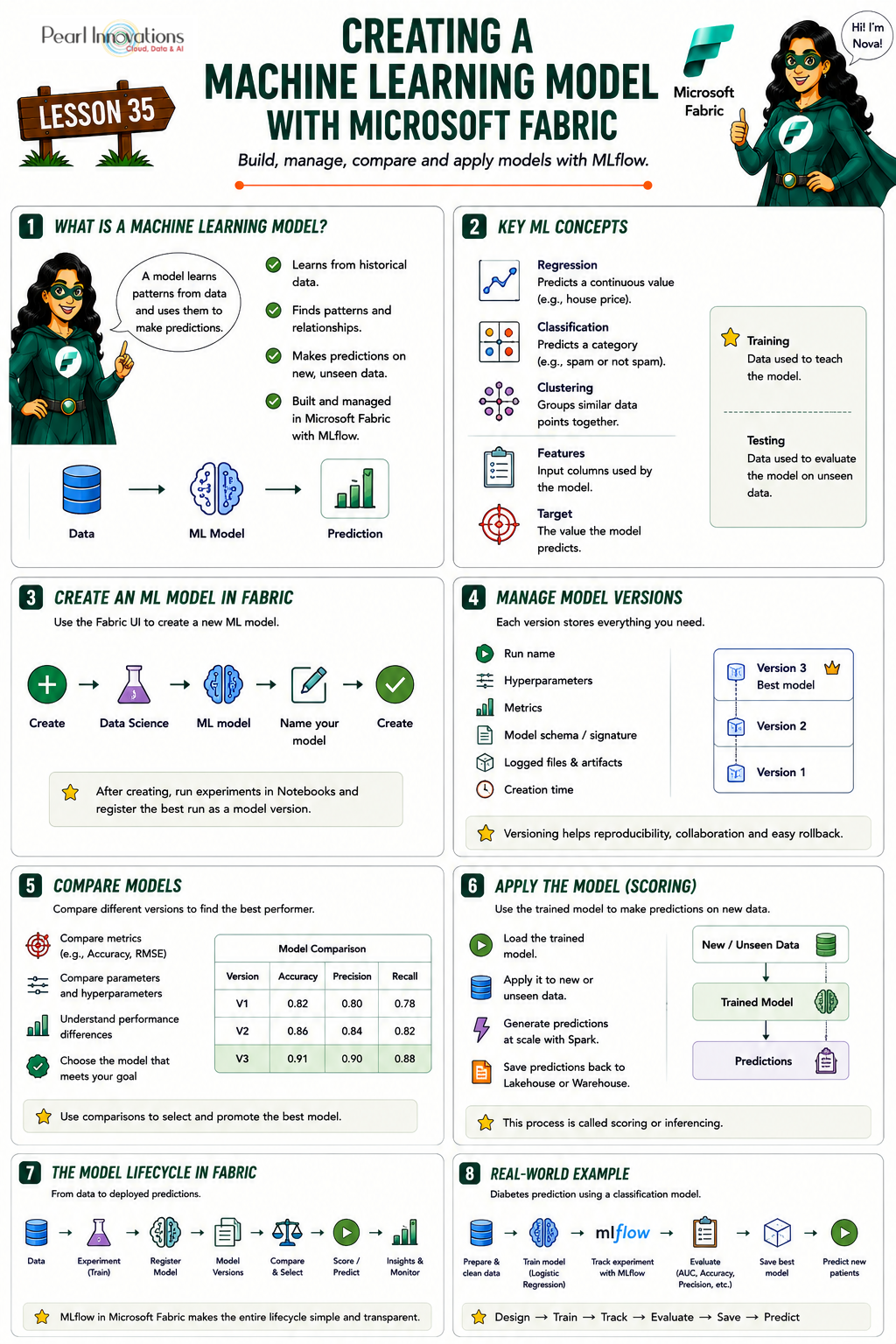
🚀 Learn It in 5 Minutes
Skip the long read.
See the key concepts in one easy-to-follow infographic.
Common Machine Learning Terms
When we say “machine learning model,” it can mean different types depending on the problem. Here are some basic terms you’ll see often:
- Regression – Predicting a continuous value. Example: predicting house prices, sales revenue, or temperature.
- Classification – Predicting categories. Example: spam vs non‑spam emails, survived vs not survived in Titanic dataset.
- Clustering – Grouping similar data points without predefined labels. Example: customer segmentation, grouping products by buying patterns.
- Features – The input variables (columns) used by the model to learn patterns.
- Target – The output variable the model is trying to predict.
- Training vs Testing – Training data teaches the model; testing data checks how well it performs on unseen data.
How to create a machine learning model?
You have the option to create a machine learning model directly within the Fabric UI. Alternatively, the MLflow API allows for the direct creation of the model as well.
Follow the steps to create machine learning model
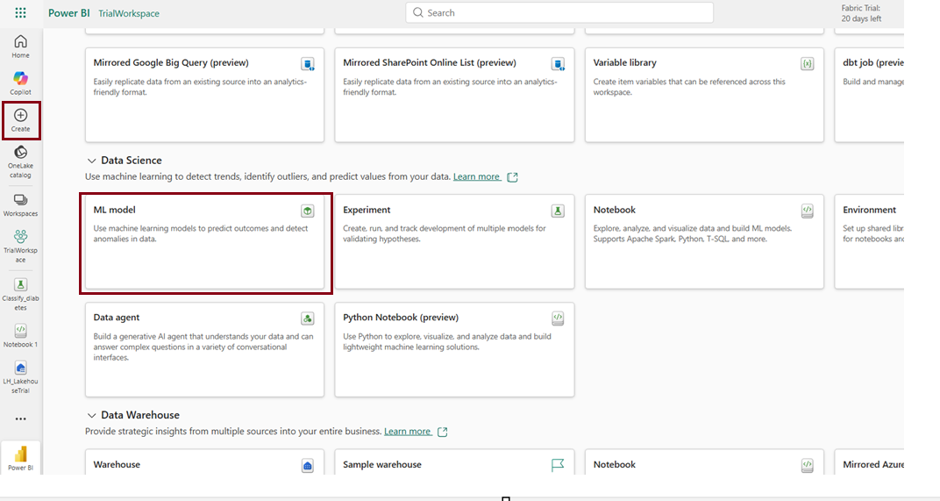
- Launch https://app.powerbi.com/
- In navigation pane on the left click Create.
- Under Data science workloads click on the item “ML model“.
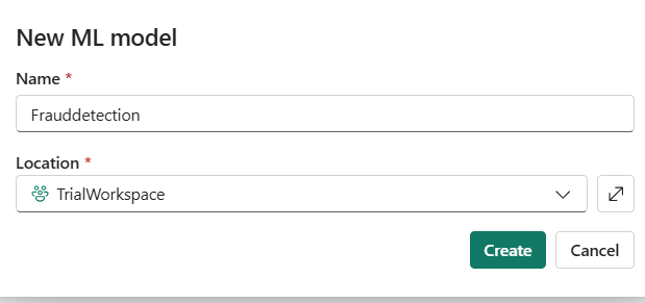
- Enter model name and click Create.
- Register or save experiment runs (as different versions) directly to an existing model.
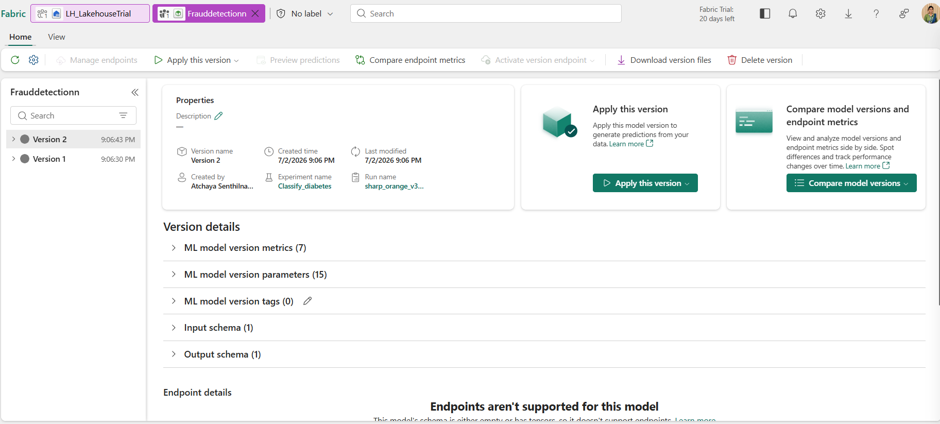
Manage multiple versions within a machine learning model
Managing versions within a machine learning model is like keeping a detailed history of changes in the model over time. This practice enhances the reproducibility, collaboration, and reliability of the machine learning process. It allows for easy comparison of different versions and the ability to go back to a stable version if needed.
Fabric now also supports cross-workspace MLflow logging for experiments and models, using standard MLflow APIs — meaning the “history of changes” this section describes can now span a full dev → test → prod MLOps workflow across separate workspaces, not just version history within one.
- Within a model, a data scientist can navigate across various model versions to explore the underlying parameters and metrics.
- Within a model, a data scientist can navigate across various model versions to explore the underlying parameters and metrics.
Each version of the model includes the following details:
- Time Created: Indicates the date and time of the model’s creation.
- Run Name: A unique identifier associated with the experiment runs contributing to the specific model version.
- Hyperparameters: Configuration settings saved as key-value pairs. Both keys and values are represented as strings.
- Metrics: Numeric run metrics stored as key-value pairs, providing valuable performance indicators.
- Model Schema/Signature: A detailed description outlining the model’s inputs and outputs, providing insights into its structure and functionality.
- Logged Files: Various files, such as images, environment details, models, and data files, are recorded. This comprehensive record allows for a thorough understanding of the model’s composition and the context in which it operates.
Compare machine learning models
Data scientists can also make comparisons across model versions to identify whether or not newer models might yield better results.
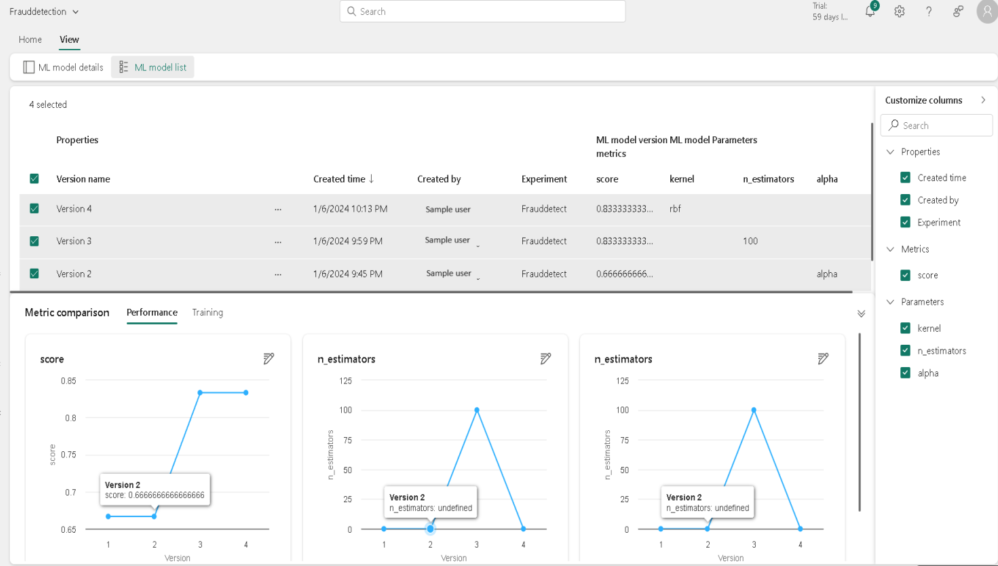
- Choose an existing machine learning model with multiple versions.
- Click View tab –> Model list view.
- Customize the table columns by expanding the Customize columns pane. Select the specific properties, metrics, and hyperparameters you want to display.
- Finally, in the metrics comparison pane, select multiple versions for comparison.
- Customize charts by making changes to the chart title, visualization type, X-axis, Y-axis, and more to tailor your analysis.
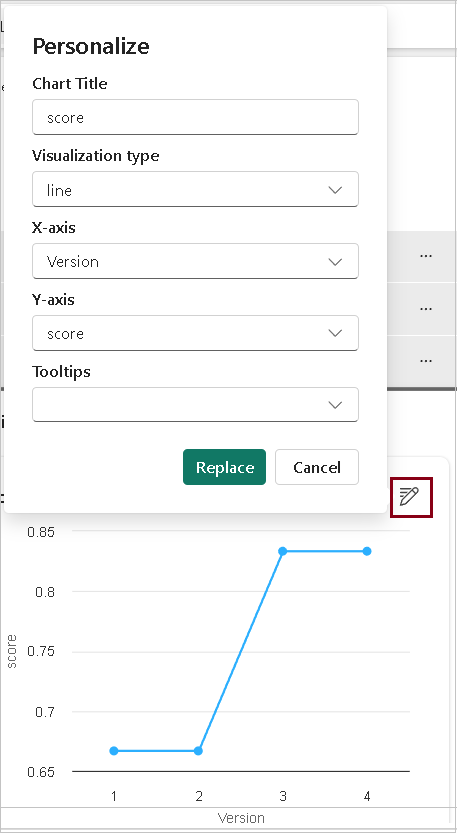
- This streamlined process ensures a comprehensive comparison of different model runs for informed decision-making.
Apply machine learning models
After training a model on a dataset, you can employ it to make predictions on unfamiliar data, a process commonly known as scoring or inferencing. This step involves utilizing the model’s learned patterns to generate insights or forecasts for data it has not encountered during training.
| Tags | Microsoft Fabric |
| MS Learn Modules | |
Test Your Knowledge |
Quiz |