
Data Wrangler, integral to Microsoft Fabric, streamlines data preprocessing for machine learning by addressing cleaning, missing values, and feature transformation. This blog explores its dynamic features code generation in pandas or PySpark, enhancing your data science workflow within the Microsoft Fabric ecosystem.
Data Wrangler
Data Wrangler, a notebook-centric tool in Microsoft Fabric, simplifies data preprocessing for machine learning. It streamlines tasks such as data cleaning, handling missing values, and feature transformation directly within Fabric notebooks Capable of being initiated directly within the notebook, Data Wrangler seamlessly interacts with both pandas and Spark Dataframes. It also generates reusable code in pandas or PySpark, saving it back to the notebook for future use. Integrated with Fabric Data Science, Data Wrangler facilitates MLflow utilization for preparing data in the machine learning lifecycle.
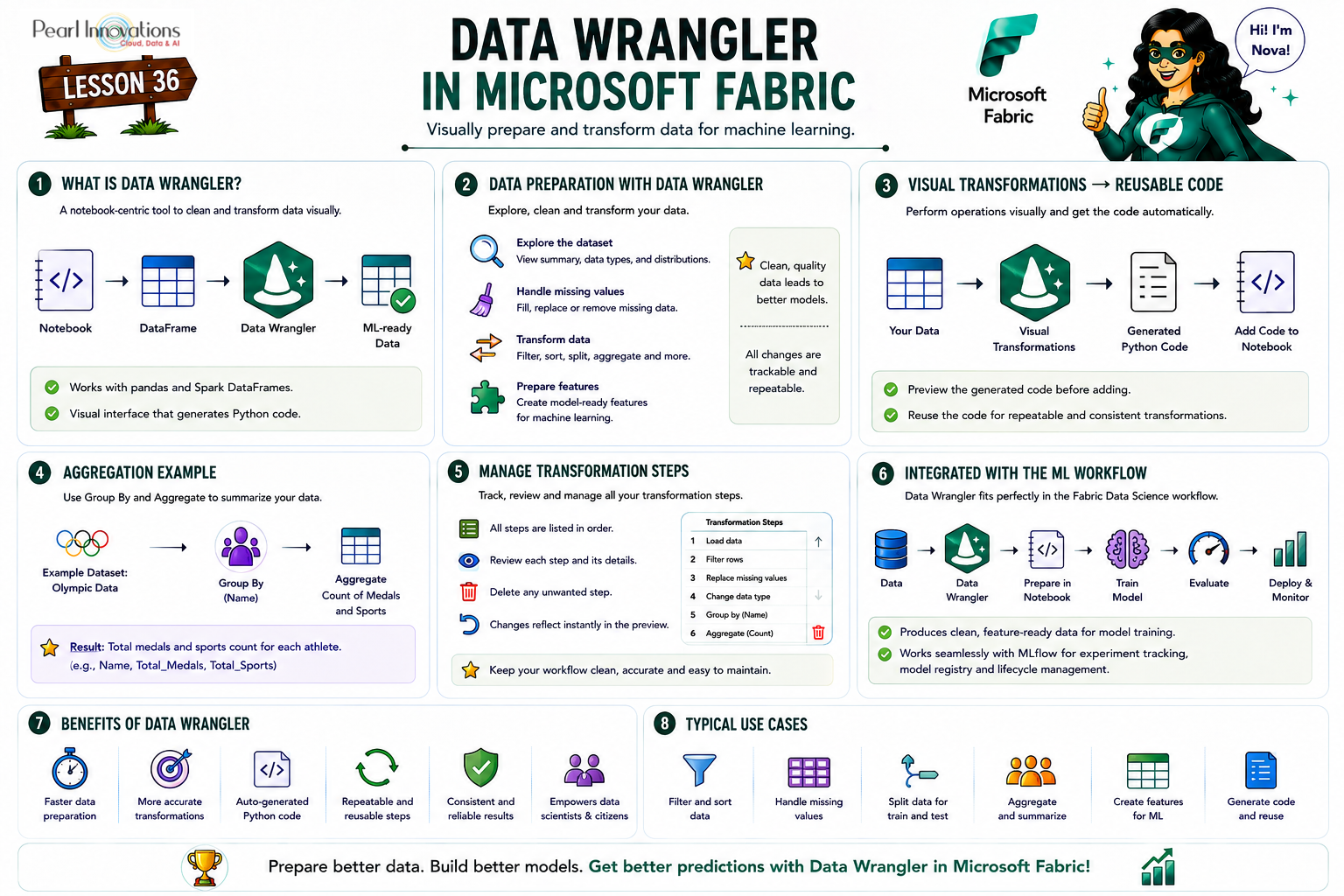
🚀 Learn It in 5 Minutes
Skip the long read.
See the key concepts in one easy-to-follow infographic.
Benefits of Data Wrangler
The following are some of the benefits of Data Wrangler
- User-Friendly Interface – Provides an intuitive and user-friendly interface for efficient data exploration and cleaning.
- Streamlined Data Transformation – Simplifies the application of data transformations with a few clicks, generating reusable code in popular libraries like pandas or PySpark.
- Effective Missing Value Handling – Facilitates easy and effective handling of missing values within the dataset.
- Feature Transformation Made Easy – Enables straightforward transformation of features, making them compatible with machine learning models.
- Seamless Notebook Integration – Integrates seamlessly with notebook environments, allowing direct launch and interaction.
- Code Reusability – Generates reusable Python code for each operation, enhancing code efficiency and reproducibility.
- MLflow Integration – Integrates with MLflow, supporting effective management of the machine learning lifecycle.
- Comprehensive Data Science Experience – Enhances the overall data science experience by providing a comprehensive solution for data preparation in machine learning workflows.
How to use Data Wrangler in Microsoft Fabric?
- Download the given CSV files and upload it in the desired lakehouse.
- On Fabric Homepage ,Navigate to the create option on the navigation bar on the left and click on Notebook under “Data science” section.
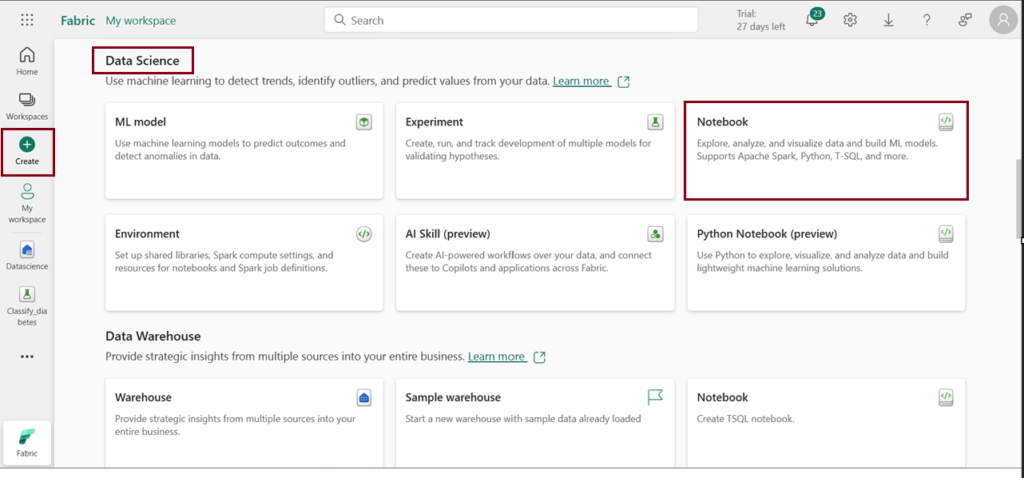
- Click Notebook
- Load data into dataframe as shown in the video.
- After loading the data, the subsequent task is to preprocess it using Data Wrangler. Data preprocessing is an essential phase in any machine learning workflow, encompassing tasks such as data cleaning and transformation to a format suitable for input into a machine learning model.
- To initiate the Data Wrangler tool, go to the notebook ribbon, click on the “Data” and then choose “Launch Data Wrangler” from the dropdown menu.
- Once Data Wrangler is launched, choose the “df” dataset.
- Upon launching, Data Wrangler generates a comprehensive descriptive overview of the dataframe in the Summary panel.
- Data Wrangler generates reusable Python code for each operation, allowing users to save and automate data processing tasks for subsequent datasets.
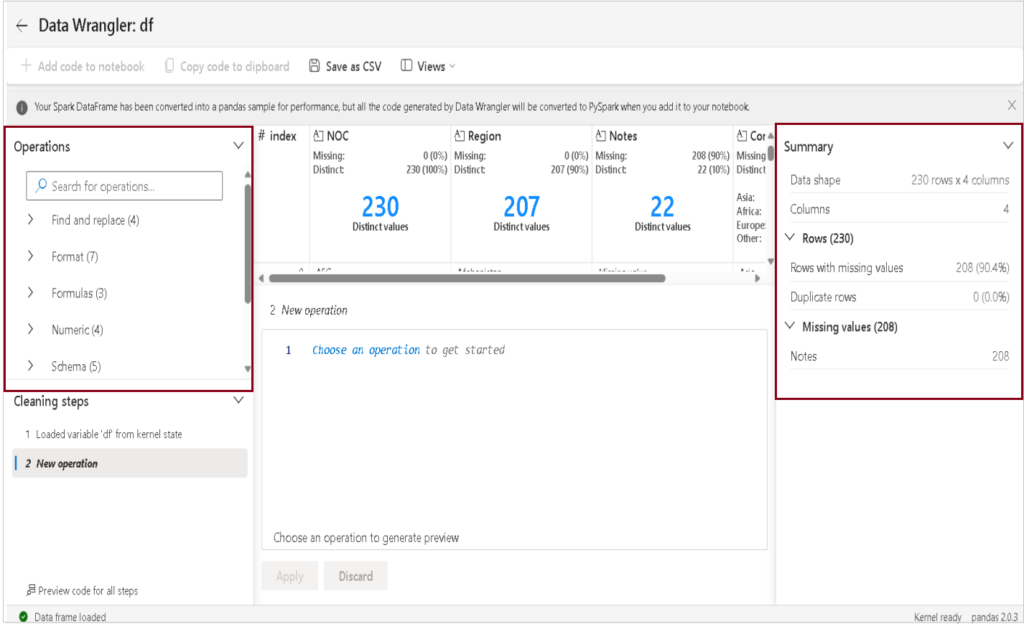
- Presently, these are the available categories of operators within Data Wrangler.
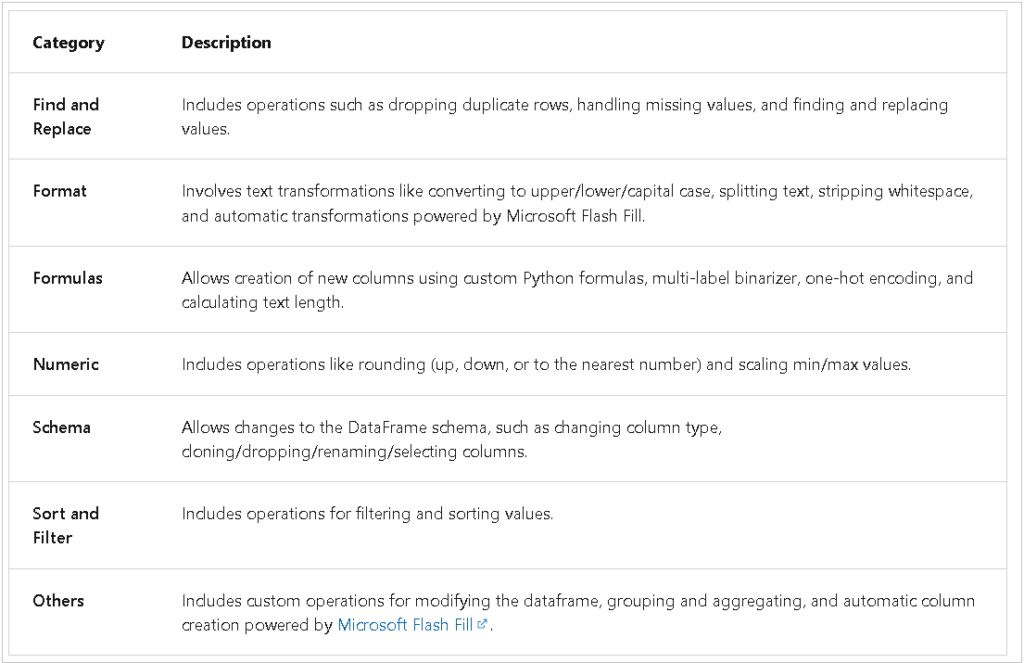
Source: Microsoft learn
Operations
- Apply the necessary transformations to the dataset.
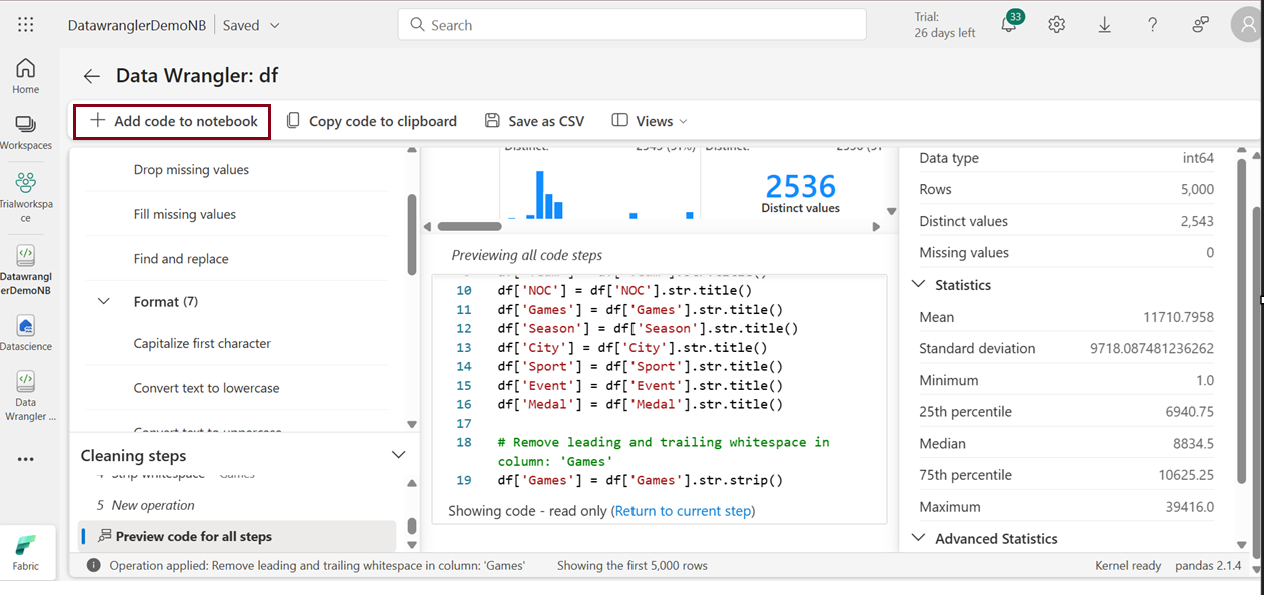
- For every operation, Data Wrangler produces Python code, allowing you to preview the generated code.
- Select “Add code to notebook” and a window will appear displaying a preview of the generated Python code.
- Furthermore, you have the option to copy the code and save the modified dataset as a CSV file.
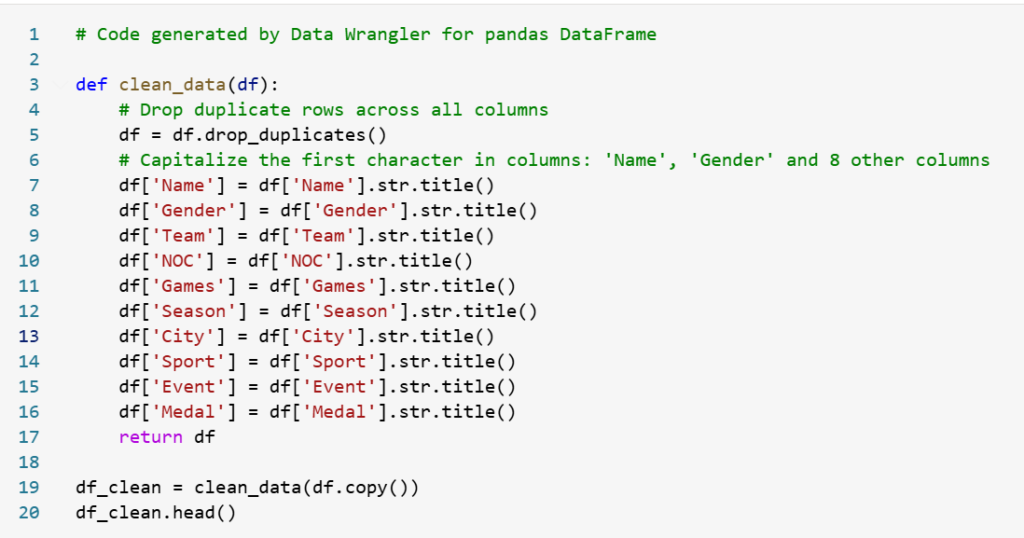
- Code generated by Data Wrangler. Click Run to the run the code.
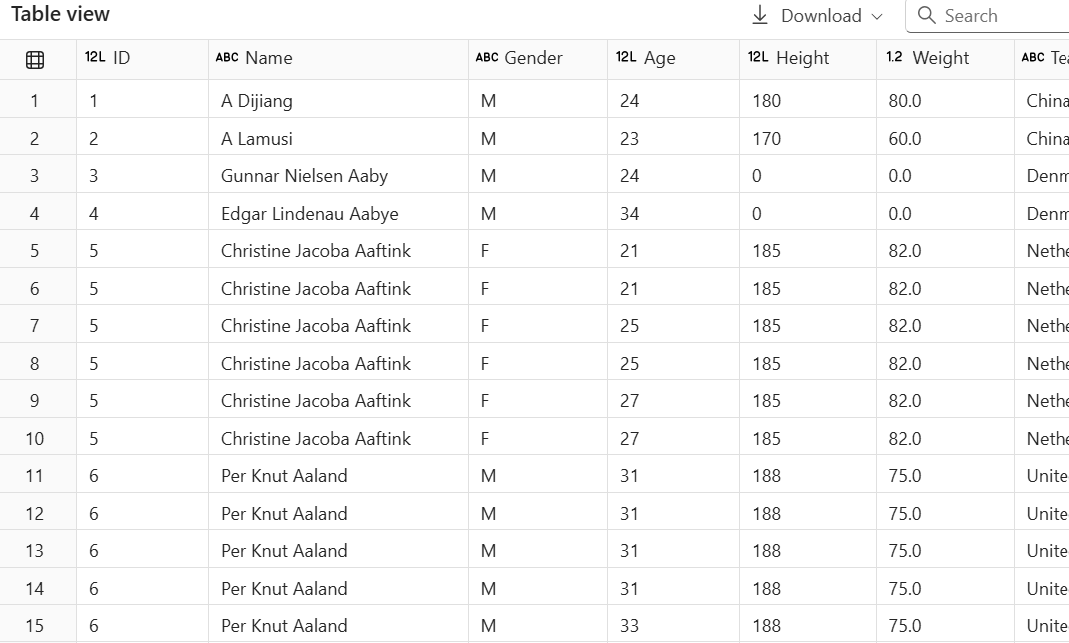
- The displayed screen represents the output of the operations applied to the dataset.
Aggregate data
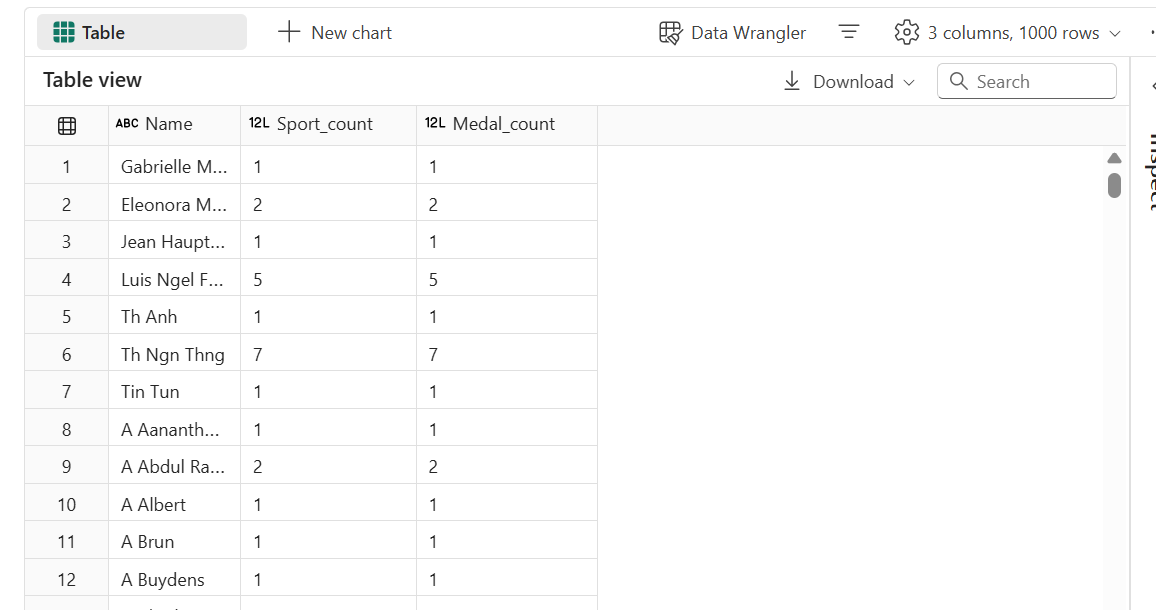
To understand the count of medals and sports for each individual, utilize Data Wrangler to execute a group-by operation.
- Launch Data Wrangler for the dataframe. Here i choosed cleaned dataframe from the step above “df_clean”
- Back to the Operations panel, select Group by and aggregate.
- In the columns to group by, select Name
- Select + Add Aggregation
- Under aggregations, select target columns as Medal and Aggregate type as count.
- Similarly, select Sport and set the aggregate type to count.
- Click Apply.
- Select Copy code to clipboard.
- Exit the Data Wrangler without generating the code.
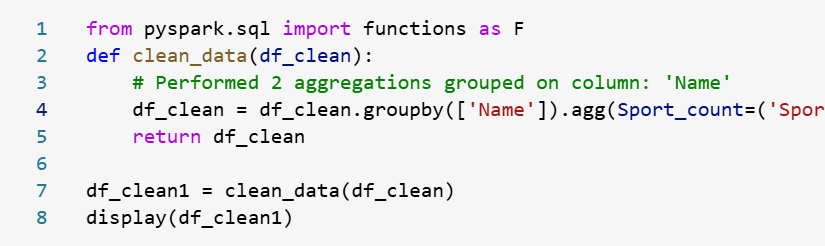
- The final code block should look like this.
- Run the cell code.
Browse and remove steps
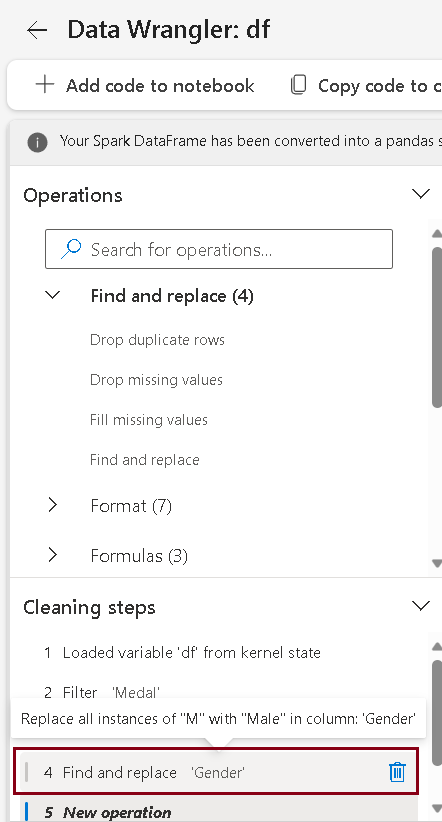
If an error was made and you need to eliminate any previous operations created in the previous step, follow these steps:
- Navigate to Data Wrangler, Cleaning steps pane.
- Identify and select the specific operation or transformation you wish to remove.
- Click “Delete icon” to remove the operation.
Repeat these steps for each operation you need to remove.
Save the notebook
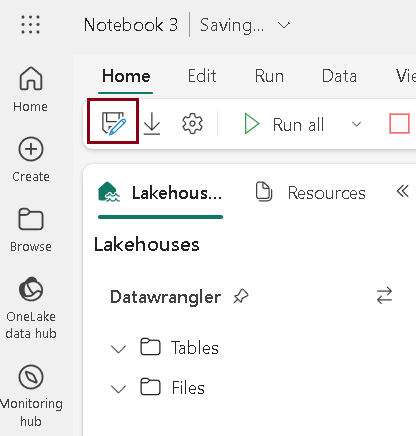
Follow the steps to save the notebook
- Click on the “Save as” icon to create a copy of the notebook.
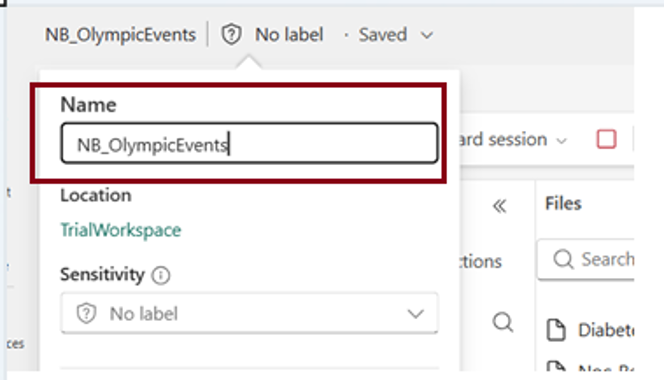
- The “Save as” window will appear; enter the name of the notebook, choose the destination location, and click on “Create.”
| Tags | Microsoft Fabric |
| Useful links | |
| MS Learn Modules | |
Test Your Knowledge |
Quiz |