
Sharing data within a Microsoft Fabric workspace is an essential feature for collaborative work and data management. Once you identify the warehouse you’d like to share, you can quickly grant access to others with specific permissions. Here’s a step-by-step guide to share a warehouse efficiently within your workspace.
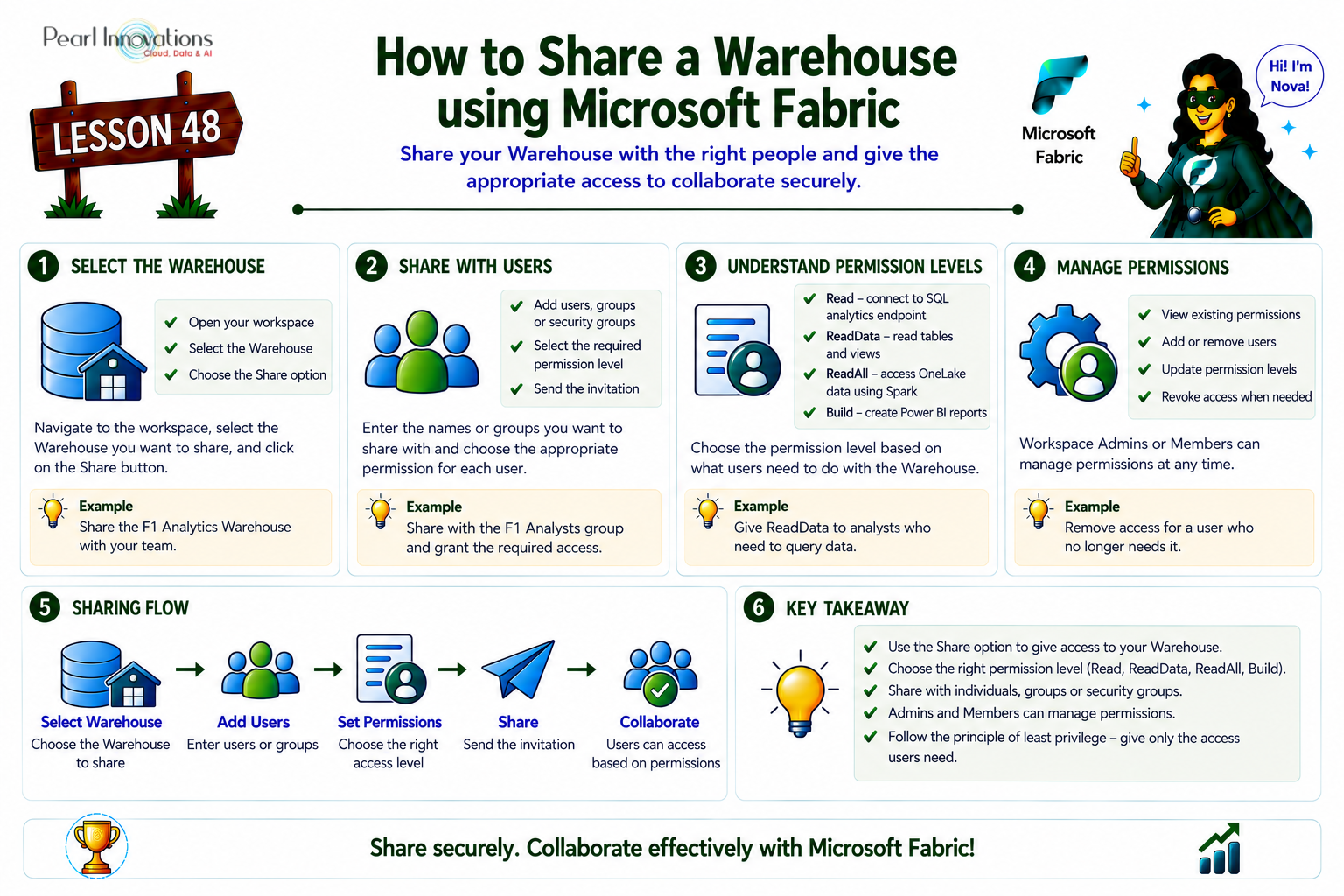
🚀 Learn It in 5 Minutes
Skip the long read.
See the key concepts in one easy-to-follow infographic.
Prerequisite
- Obtain a Microsoft Fabric tenant account with an active subscription. Refer Lesson 3 Getting started with Microsoft Fabric.
- Verify that you have a Microsoft Fabric-enabled Workspace set up and ready for use. Refer Lesson 4 Fabric Workspaces and how to create one?
- To create a warehouse , refer Lesson 44 – Load data into Warehouse in Microsoft Fabric by different methods
Step 1: Select the Warehouse
To begin, navigate to the warehouse item that you wish to share within your Microsoft Fabric workspace. Once identified, you can share it using the quick action button in the row of the item.
Below video this process in the Fabric portal interface, guiding you through the steps of selecting the warehouse, setting permissions, and granting access to another user.
Shared recipient will receive a mail like this.
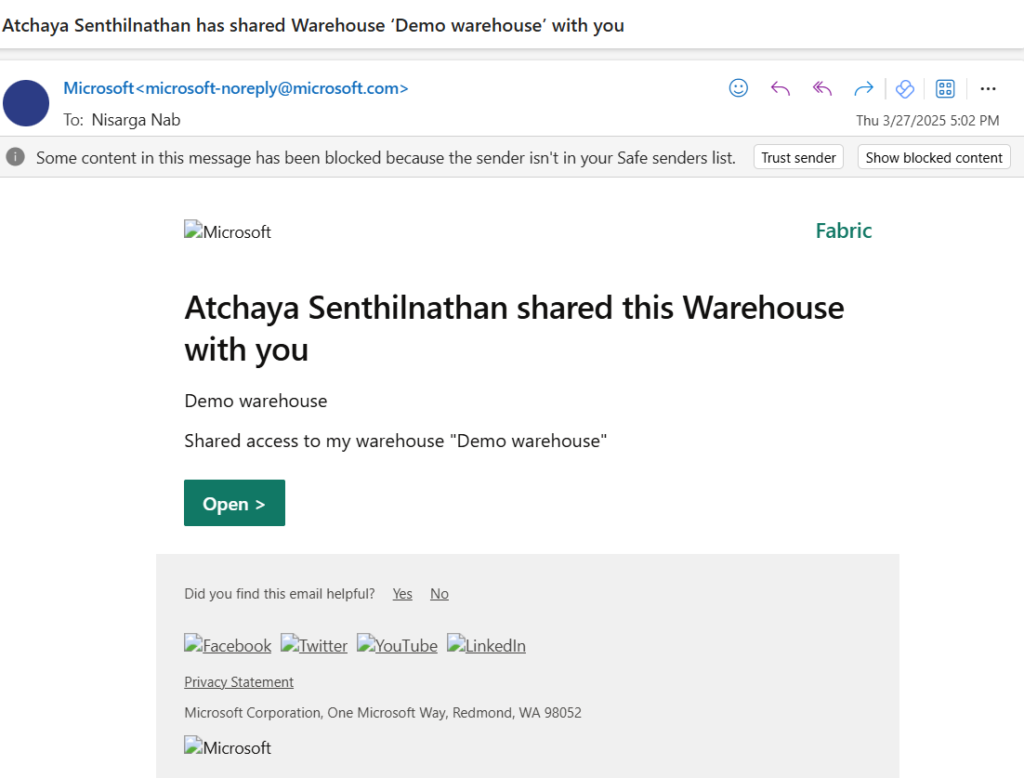
Based on the level of access granted, the shared recipient can now connect to the SQL analytics endpoint, query the warehouse, create reports, or read data using Spark.
Understanding Fabric Security Roles and Permissions
Microsoft Fabric offers various permissions to ensure that shared data is accessible according to the recipient’s role. Below are the common types of permissions available:
1. Read Permission
By default, if no other permissions are selected, the recipient will have “Read” permission. This allows them to connect to the SQL analytics endpoint, like “CONNECT” permissions in SQL Server. However, they cannot query tables or execute functions unless granted additional access to specific warehouse objects.
2. Read Data Permission
This permission allows the recipient to read all objects within the warehouse. It’s the equivalent of the db_datareader role in SQL Server. If you want to limit their access to certain tables or views, you can control this through T-SQL GRANT/REVOKE/DENY statements.
3. ReadAll Permission
“ReadAll” provides full access to the data within the warehouse, enabling the recipient to read all underlying Parquet files stored in OneLake via Spark. This permission is essential if the recipient needs complete access to data using the Apache Spark engine.
4. Build Permission
If you want the recipient to build reports on the default dataset connected to your warehouse, select the “Build” permission. This enables them to create reports on Power BI based on the warehouse’s semantic model. By default, the “Build” option is selected, but it can be unchecked if unnecessary.
Managing Permissions in Microsoft Fabric
As an admin or member of the workspace, you can easily manage permissions. The Manage Permissions page lists all users who have access to the warehouse, either through workspace roles or individual item permissions.
Here’s how to manage permissions:
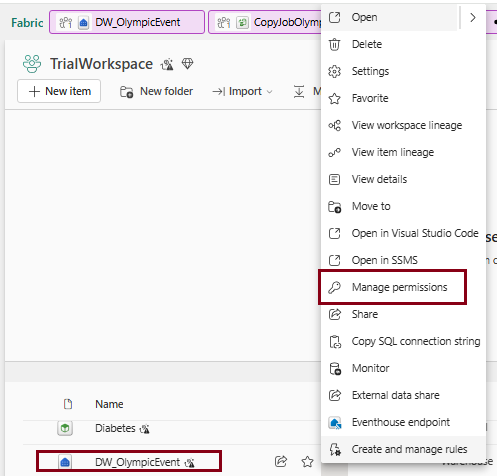
Go to the Warehouse: Select More Options, then choose Manage Permissions.
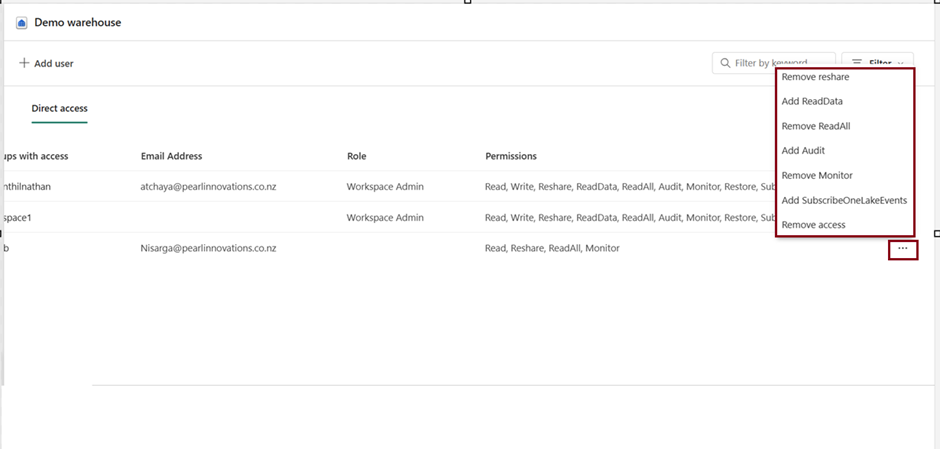
Modify Permissions: The page will show users with their respective roles and permissions, such as Admin, Member, or Viewer. You can add or remove permissions for users, like ReadData or ReadAll.
Remove Permissions: You can remove specific access, such as ReadData, ReadAll, or Build permissions. This ensures that users only have the necessary level of access.
Short video on managing permissions for user.
Conclusion
In conclusion, sharing a warehouse in Microsoft Fabric is a powerful way to collaborate and manage data access within your workspace. By selecting the appropriate permissions, you can control who has access to different features like querying, reporting, and reading data. This flexibility ensures that users have the right tools for their tasks while maintaining data security and integrity. With the ability to easily manage permissions, you can ensure seamless collaboration and efficient data usage within your team.
| Tags | Microsoft Fabric |
| Useful Links | |
| MS Learn Modules | |
Test Your Knowledge |
Quiz |