
In this blog, we’ll see how to use Microsoft Fabric’s Data Activator with sample data (Package Delivery events) to monitor real-time conditions and send alerts. We’ll create our own rule that checks for delivery delays and sends notifications.
Prerequisite
- Obtain a Microsoft Fabric tenant account with an active subscription. Refer Lesson 3 Getting started with Microsoft Fabric.
- Verify that you have a Microsoft Fabric-enabled Workspace set up and ready for use. Refer Lesson 4 Fabric Workspaces and how to create one?
Step 1: Launch the Data Activator
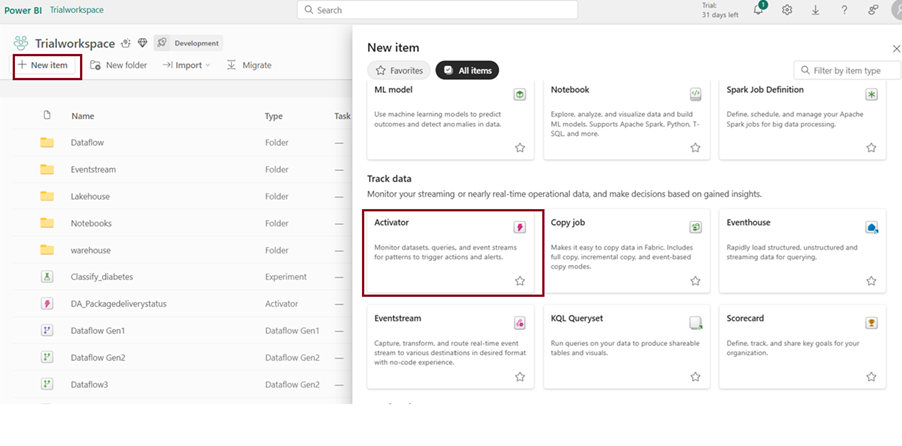
Open Fabric, click on new item and choose “Activator” under Track data
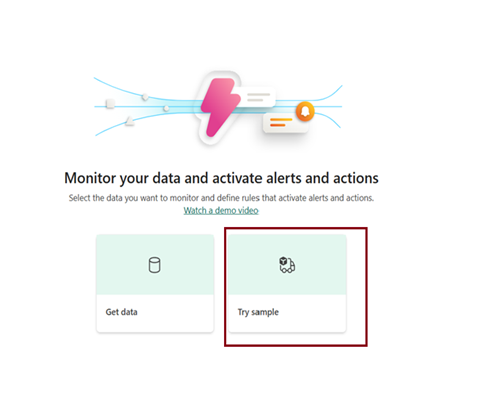
Step 2: Your Activator page will now open. Click on ‘Try sample’ to automatically load the Package Delivery sample data.
Step 3: Explore the Data
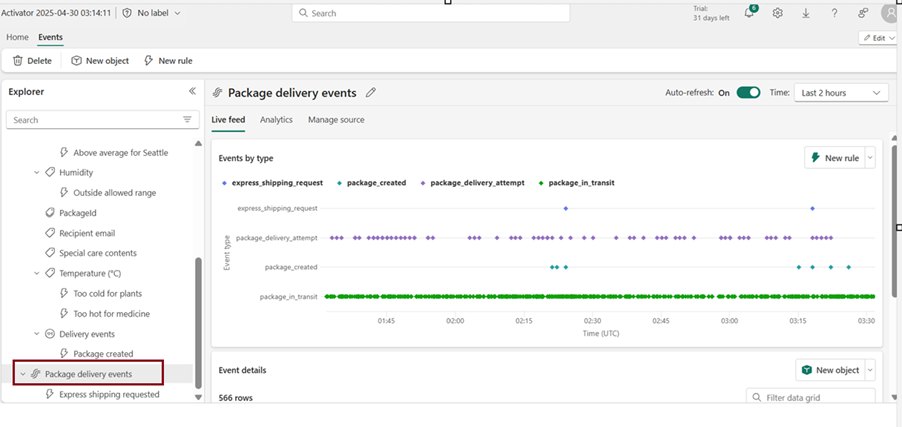
In the Explorer section, click on Package delivery events. You’ll see real-time events each row shows live data about a delivery (temperature, city, time in transit, etc.). Hover over the rows to understand the values.
Step 4: Understand the Built-in Rule
There’s a sample rule: “Too hot for medicine”
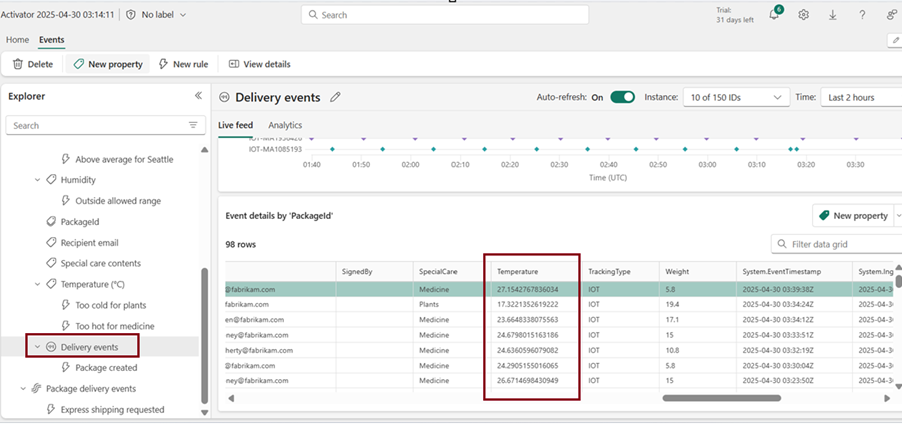
Select the ‘Delivery events’ object from the Explorer pane. This object is based on the ‘Package delivery events’ stream, and you can use it to create rules for example, to track the temperature of packages.
Click on the Temperature rule named ‘Too hot for medicine’, then scroll through the Definition pane to understand how the rule is configured.
Step 5: Explore the Rule
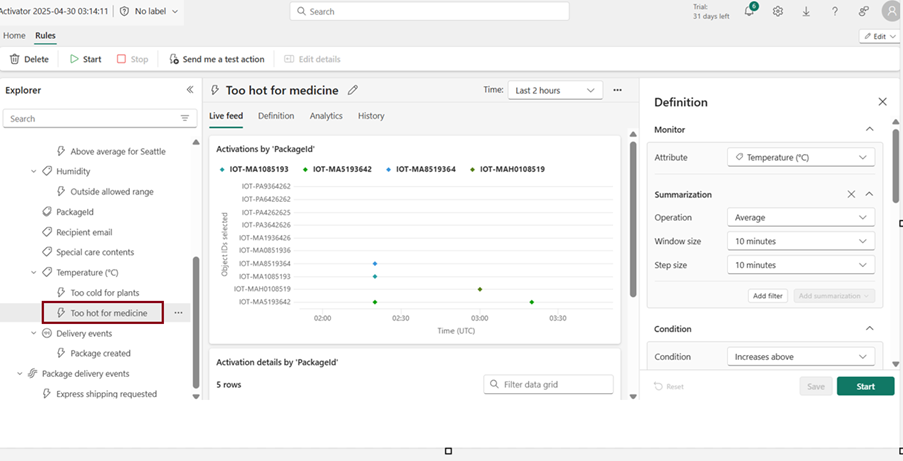
- In the Monitor section, choose ‘Temperature’. These values are sourced from the Temperature column in the Delivery events table, which was shown in a previous screenshot.
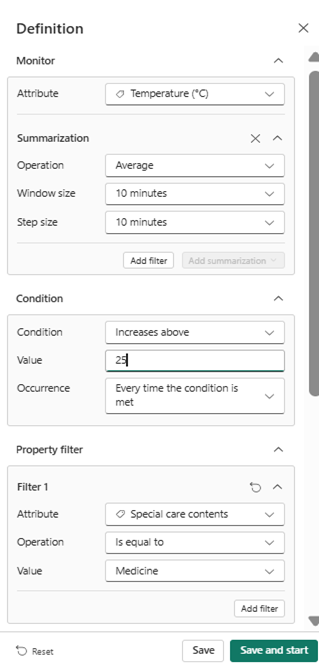
- Scroll down to the Condition section, this rule is set to trigger when the temperature exceeds 25 degrees Celsius. Below that, in the Property filter section, the rule is further narrowed to apply only to packages marked as containing medicine.
- This is based on the ‘Special care contents’ column in the Delivery events table, where some entries are labelled ‘Medicine
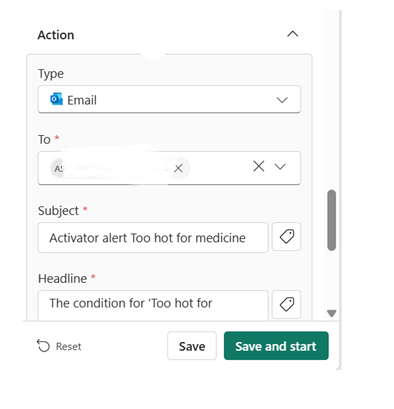
Finally click on “Action” section and set to sends a Email if the condition is met.
Actions
After a rule is triggered, Microsoft Fabric Activator can automatically perform different actions. In addition to sending email notifications, it can send Microsoft Teams messages, trigger Power Automate flows, run Fabric Pipelines, Notebooks, Spark Job Definitions, Dataflows, User Data Functions (UDFs), Copy Jobs (Preview), and publish Business Events (Preview). These actions help automate business processes and enable real-time responses to important events.
Note: The available actions in Activator continue to expand with new Microsoft Fabric releases. Refer to the latest Microsoft Learn documentation for the most up-to-date list of supported actions.
Step 6: Start the rule
- Click on the ‘Too hot for medicine’ rule.
- If you’d like, you can send a test notification by selecting ‘Send me a test action’ ,just make sure you’re listed as the recipient.
- Once you’re ready, click ‘Start’ to activate the rule.
- Now you will receive an Email whenever a medicine package exceeds the temperature threshold. You can stop the rule at any time by clicking the ‘Stop’ button.
Just like we explored the built-in object and rule earlier, you can also create your own custom object and set up rules based on it. This gives you more control and flexibility to monitor exactly what matters to you.
Cleanup (Optional):
After testing your rule, you can click the Stop button to stop the rule and avoid receiving further notifications. If you no longer need the objects or rules created during this tutorial, you can delete them to keep your workspace clean. You will get charged for background processing
Triggering Fabric Items with Activator Rules
We have seen how Activator rules can monitor real-time data and trigger alerts. But we can also use those rules to start other Fabric items like Data Pipelines or Notebooks. This is incredibly useful when you want to take automated action such as loading new files or performing data quality checks based on incoming data.
For example:
- Start a data pipeline when a new file arrives in your Azure Storage account to automatically load that file into OneLake.
- Trigger a notebook when a Power BI report detects a data quality issue, so further analysis or cleanup can begin immediately.
- Microsoft Fabric Activator now supports User Data Functions (UDFs), Copy Jobs (Preview), and Publish Business Event (Preview), making it easier to automate custom processes and event-driven workflows.
Now am going to demonstrate to start a data pipeline in my Lakehouse when a new file arrives in my azure storage account.
Follow above steps and create an Activator. Choose data source as “Azure blob storage”
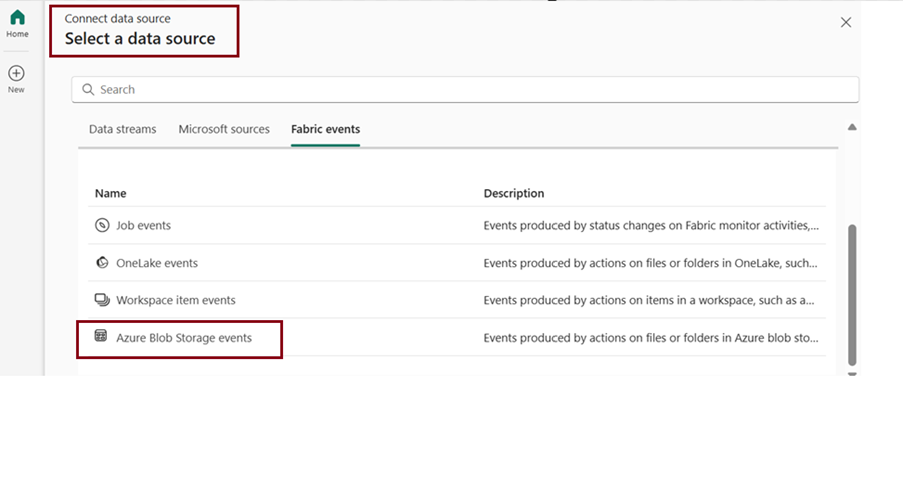
Connect Azure storage account from activator
Activate a Fabric item
Start by selecting an existing rule or creating a rule.
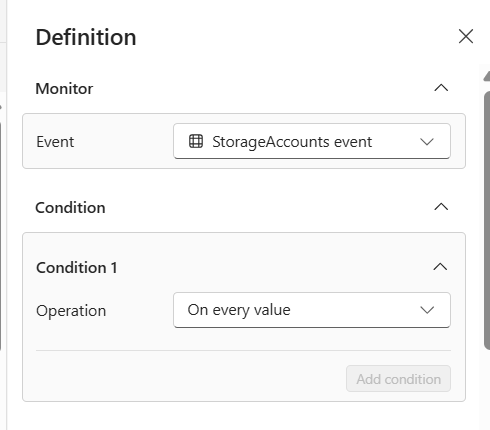
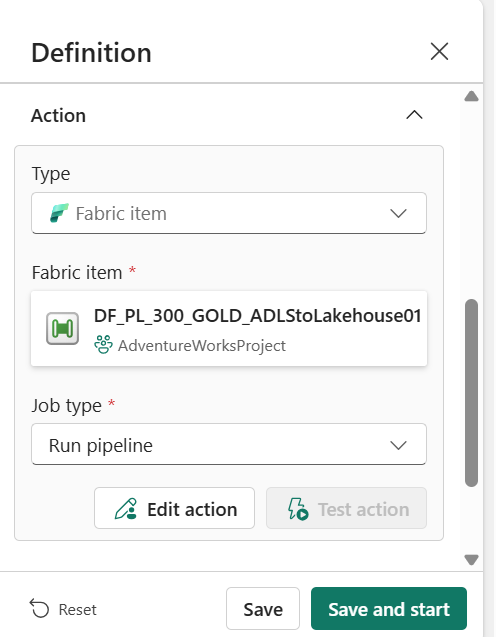
In this case, the action type is set to ‘Fabric item’. Once new data is uploaded to the Azure Storage account, the pipeline will be triggered automatically and will load the latest data from Azure Blob Storage.
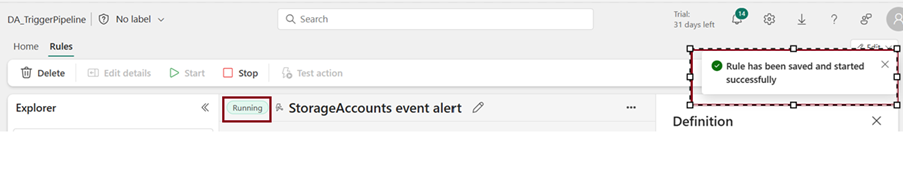
After filling in all the required details, click Save to store your Activator rule. You can use Test action to check if the rule behaves as expected. To make the rule live, select Start from the top menu. If needed, you can stop the rule anytime by selecting Stop, this option is only visible when the rule is currently active.
I uploaded a new csv file into blob storage named “OlympicEvents”
Now the latest uploaded csv file in Azure blob storage was loaded into Lakehouse through pipeline by Data activator.
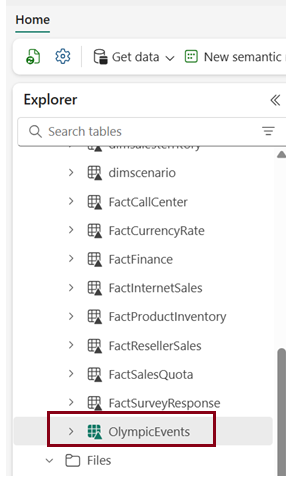
Tutorial Source: Microsoft Learn
Additional capabilities worth mentioning
• SQL query rules (preview) — create Activator rules directly on ad-hoc or saved SQL queries against a Fabric Data Warehouse, on a configurable evaluation schedule.
• Business Events — set alerts directly on business events to automate business processes and actions.
• Ontology rules (preview) — define conditions and actions on business entities modeled in Fabric Ontology, turning it from a static information model into an operational one.
• Inline rule creation in Eventstream — rules can now be authored directly while configuring an Eventstream, without switching to the separate Activator experience.
• Power BI table visual alerting — Activator can notify you when a new row appears in a table visual in a published Power BI report.
Conclusion
In this blog, we explored how to use Microsoft Fabric Data Activator to monitor real-time data and automate actions through triggers. Starting with sample Package Delivery events, we learned how to explore data, understand built-in rules, and create our own rules to track delivery delays or temperature issues. We also demonstrated how Activator can go beyond just alerts by triggering Fabric items like Data Pipelines, enabling powerful end-to-end automation. Whether you’re sending notifications or kicking off data processes, Activator makes real-time responsiveness in Fabric simple and scalable.
| Tags | Microsoft Fabric |
| Useful Links | |
| MS Learn Modules | |
Test Your Knowledge |
Quiz |