
Data Activator(Fabric Activator)
Microsoft Fabric’s Data Activator is a no-code tool that helps monitor your data and automatically act when specific patterns or thresholds are detected which means no developer or IT support required. Think of it like setting up smart alerts that do something useful when your data reaches a certain condition.
It works with data from Power BI reports, eventstreams, and other sources. The moment your data meets a condition like sales drop, temperature spikes, or a shipment stalls your Activator can send alerts, trigger workflows, or even take corrective action via Power Automate or Teams notifications. It is like a real time digital nervous system for your business data.
Core Architecture
Activator is a key component of Microsoft Fabric Real-Time Intelligence. It continuously monitors streaming data, detects events based on predefined rules, and automatically triggers actions when those conditions are met. This enables organizations to respond to real-time events quickly without manual intervention. Activator processes streaming data with low latency, making it suitable for real-time monitoring and automation. Since Activator runs on Fabric capacity, costs are incurred only while it is actively processing events.
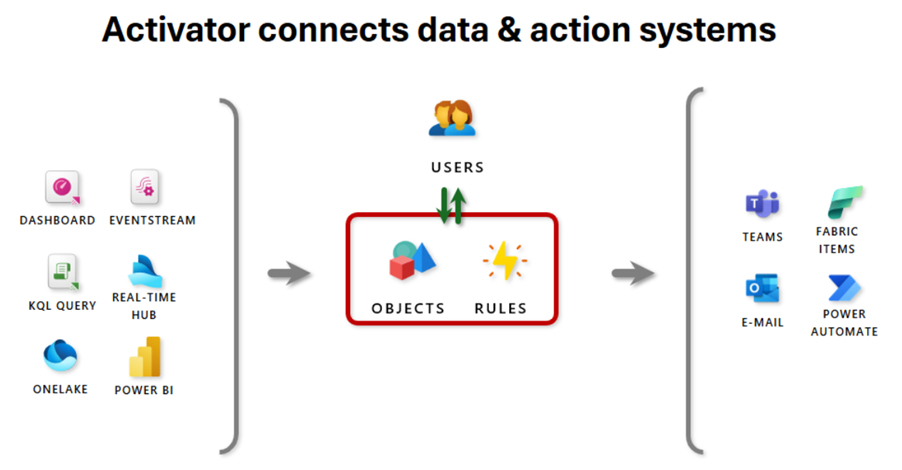
The below image clearly explains how Data Activator continuously monitors real-time data from sources like Dashboards, Eventstreams, and Power BI, applies user-defined rules on tracked objects, and automatically triggers actions such as sending emails, updating Fabric items, or initiating workflows in Teams and Power Automate.
Source: Microsoft Learn
Real-World Use Cases
- Run ads when same-store sales decline.
- Alert staff when a freezer is failing before it gets spoiled.
- Initiate investigation if a shipment hasn’t moved in 4 hours.
- Notify customer teams if an account goes overdue.
- Track pipelines and alert if pipelines fail or anomalies detected.
Activator Core Concepts
To create and execute automated actions in Activator, below core concepts are essential.
Events
An event is a single observation which means a snapshot of a moment in time that tells you what happened and when.
Activator treats all incoming data (from dashboards, eventstreams, Power BI, etc.) as streams of such events. These can be frequent, like IoT sensor readings, or slow, like daily Power BI refreshes.
Examples:
- Temperature reading from a freezer
- Sales data from a Power BI refresh
- A package scanned at a warehouse
Even Power BI dataset refreshes count as they produce a slow-moving eventstream based on refresh schedules.
Supported Event Sources
- Eventstreams
- Power BI reports
- Fabric events (item creation, updates, deletions, semantic model refreshes, and pipeline failures)
- Azure events (such as Azure Blob Storage events)
- Business Events
- Fabric Ontology business entities (Preview)
- Real-Time Dashboards
- New row detection in Power BI report table visuals
Objects
The business objects you monitor can be physical items like freezers, vehicles, packages, and users, or abstract concepts such as advertising campaigns, accounts, and user sessions. You model an object in Activator by choosing an identifier (like FreezerID or AccountID) and mapping the fields that define its state over time.
object instance – specific item (e.g., a particular freezer, vehicle, or package)
object – broader definition or class of the item
population – describe all instances of a given object.
Example:
A freezer is an object, the specific freezer in a store is an object instance, and all freezers across stores make up the object’s population.
Rules
Rules define conditions to detect on objects and specify actions when those conditions are met.
Example:
A rule for freezer temperature could detect if the temperature rises above 5°C and automatically send an email alert to the technician.
Rule Type
Activator supports both stateless and stateful rules. Stateless rules evaluate each event independently based on predefined conditions, while stateful rules track changes over time to detect patterns such as increases, decreases, value changes, or missing events. In addition, Activator supports SQL query-based rules (Preview), allowing you to monitor Fabric Data Warehouse data by running scheduled SQL queries and triggering actions when specified conditions are met.
Supported Actions
When a rule is triggered, Activator can automatically perform various actions. In addition to sending email notifications, Microsoft Teams messages, or triggering Power Automate flows, Activator can also start Fabric pipelines, notebooks, Spark job definitions, dataflows, User Data Functions (UDFs), Copy Jobs (Preview), or publish Business Events (Preview). These capabilities help automate business processes and enable real-time responses to changing data conditions.
Properties
Properties define reusable logic for objects. For instance, you might smooth temperature readings over time to avoid false alerts caused by fluctuations.
Example:
Temperature Smoothing
For example if you are monitoring the temperature of a freezer, and the readings fluctuate more. Rather than using the raw, noisy temperature readings, you can define a property that smooths the temperature over an hour to get a more stable value.
- Property Name: “Smoothed Temperature”
- Logic: Average of the last 60 minutes of temperature readings.
- Usage: You can use the smoothed temperature in your rules to check for temperature spikes, rather than reacting to every minor fluctuation.
Instead of reacting to a temperature of 5.2°C and then 5.5°C within minutes, you might want to check the average temperature over an hour, like 5.3°C.
This makes your decision-making more stable and you get alerts only when there’s a significant change, not for tiny fluctuations.
Date Conversion (Days Since Event)
- Property Name: “Days Since Last Purchase”
- Logic: Calculate how many days have passed since the last customer purchase.
- Usage: Trigger a reminder email to the customer if it’s been more than 30 days since their last purchase.
These properties simplify rule creation and allow you to reuse the same logic across multiple scenarios, saving time and ensuring consistency.
Reusability: Once you define a property, you can reuse it across multiple rules, saving time and effort.
Consistency: Ensures that similar data transformations are applied consistently, reducing errors.
Simplification: Makes your rules simpler by handling complex logic in properties, allowing you to focus on high-level conditions.
Lookback Period: The Lookback period defines how much historical data Activator uses to evaluate a rule. It helps Activator detect patterns, calculate aggregates such as averages, and handle late-arriving data more accurately. Choosing an appropriate lookback period ensures that rules are evaluated using sufficient historical information.
Active Object IDs: It represent the objects that have received events within the configured lookback period. Activator evaluates rules only for these active objects instead of every object that has ever been tracked. This improves performance and ensures that rule evaluation focuses on the most relevant and recent data.
Conclusion
Microsoft Fabric Activator enables organizations to automate real-time responses to changing data without writing code. It monitors data from multiple sources, detects predefined conditions, and automatically triggers actions such as notifications, workflows, pipelines, notebooks, and other Fabric processes. With support for a wide range of event sources and automation options, Activator helps organizations respond quickly to events, streamline business processes, and improve operational efficiency.
In upcoming blogs, we’ll explore advanced features and practical applications of Data Activator to help you leverage its full potential.
| Tags | Microsoft Fabric |
| Useful Links | |
| MS Learn Modules | |
Test Your Knowledge |
Quiz |