
In the era of advanced analytics, leveraging data is essential for making informed decisions. Microsoft Fabric, offers a robust framework for data management and analysis. A standout feature in this ecosystem is the capability to effortlessly generate Power BI semantic models directly from a Warehouse.
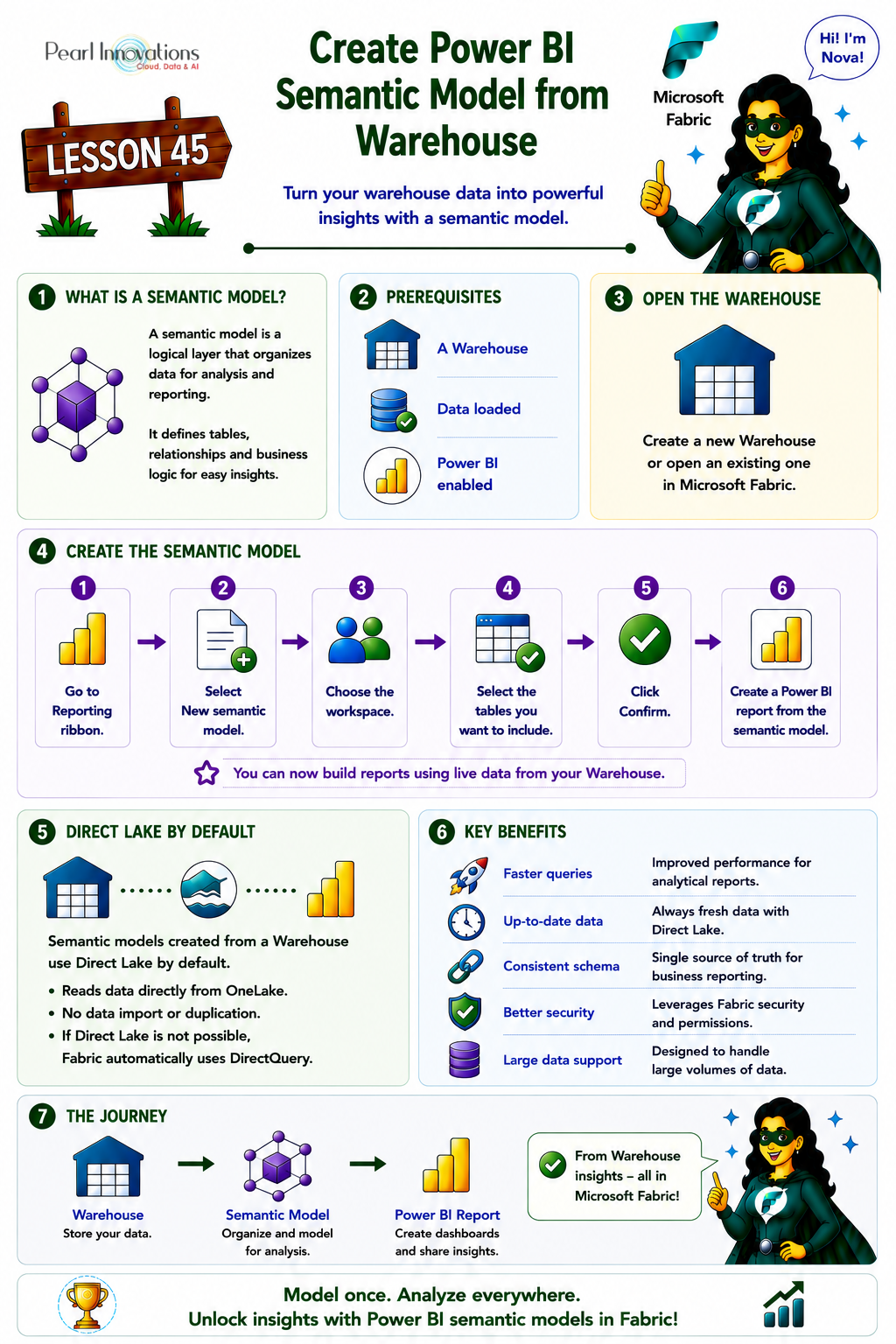
🚀 Learn It in 5 Minutes
Skip the long read.
See the key concepts in one easy-to-follow infographic.
In this blog post, we will explore the intricacies of this process, its advantages, and key considerations within the Microsoft Fabric environment.
Power BI semantic model
In Microsoft Fabric, Power BI semantic models provide a logical representation of analytical domains . Following a star schema, these models empower users to analyse data effortlessly. Integrated seamlessly into Power BI, users can build reports in the web or desktop, ensuring a time-saving and user-friendly experience.
New semantic models created from a Warehouse or SQL analytics endpoint now use Direct Lake storage mode by default. Direct Lake reads data directly from OneLake, providing fast query performance while keeping the data up to date without importing or duplicating it. If Direct Lake cannot be used because of certain limitations, it automatically falls back to DirectQuery. You can also create Import or DirectQuery semantic models manually using Power BI Desktop and the SQL analytics endpoint.
Creating Power BI semantic models directly from a data warehouse offers several advantages
- Optimized warehouse structures improve query performance for faster data retrieval.
- Direct Power BI to warehouse connection minimizes the need for ETL, ensuring up-to-date reports.
- Live data connections provide real-time insights, updating Power BI reports as warehouse data changes.
- The semantic model reflects the warehouse schema, ensuring data consistency and accurate reporting.
- Warehouse security controls are inherited, enforcing data-level security rules for authorized access.
- Scalable semantic models handle large datasets without compromising performance, allowing seamless growth in Power BI.
How to create Power BI semantic model from warehouse?
Follow the steps to create semantic model from warehouse.
- Launch https://app.fabric.microsoft.com/
- Sign in to Microsoft Fabric with your subscription or trial account. Refer Lesson 3 Getting started with Microsoft Fabric.
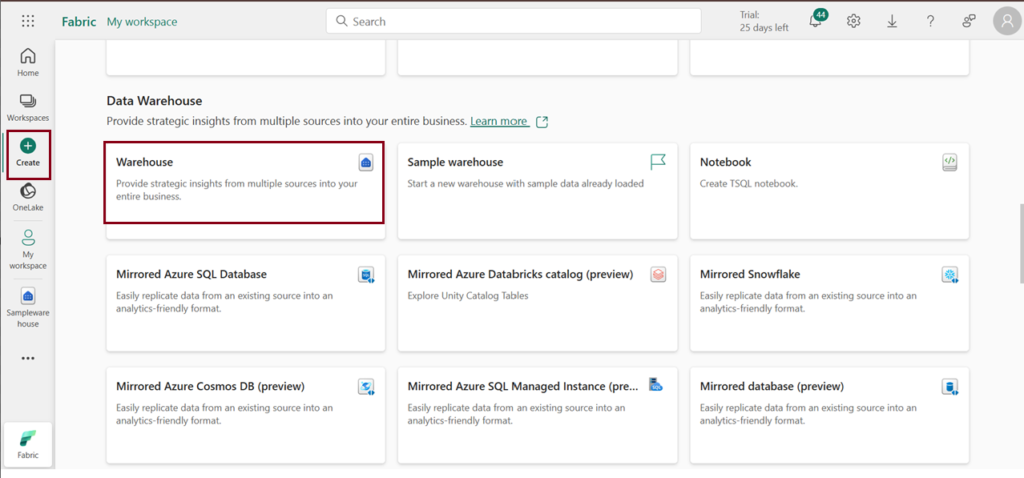
- Click on the Navigation pane and click create option on the Fabric homepage.
- Click on the warehouse under Data warehouse to initiate the creation of a new warehouse.
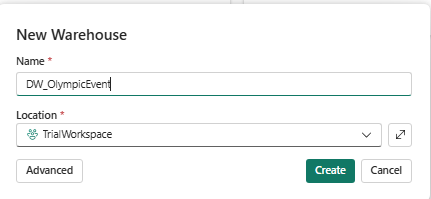
- Enter the name for the new warehouse you wish to create. Click Create.
- Upon entering, you will be directed to the warehouse home page. For this exercise, sample data has been utilized. Click on the sample data option to load it into your newly created warehouse.
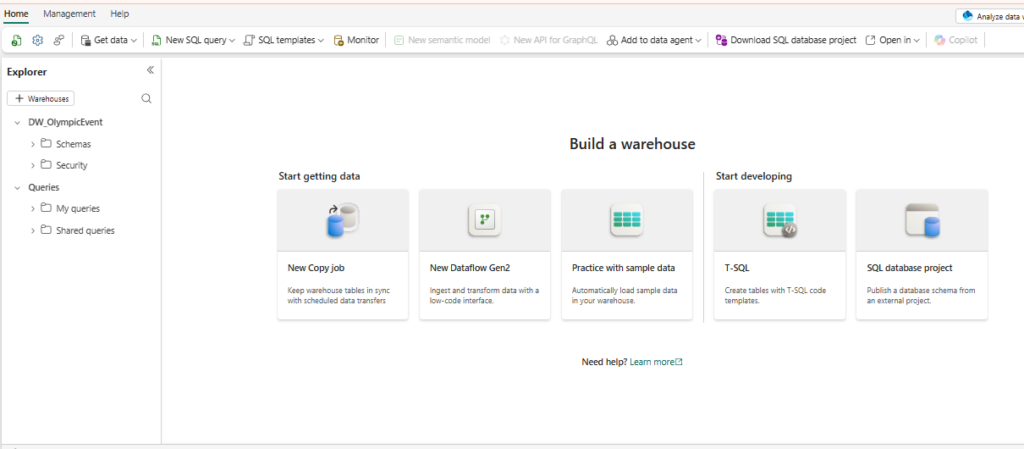
- Once selected, all tables from the sample data will be loaded into the warehouse. Now, switch to the reporting ribbon for further actions.
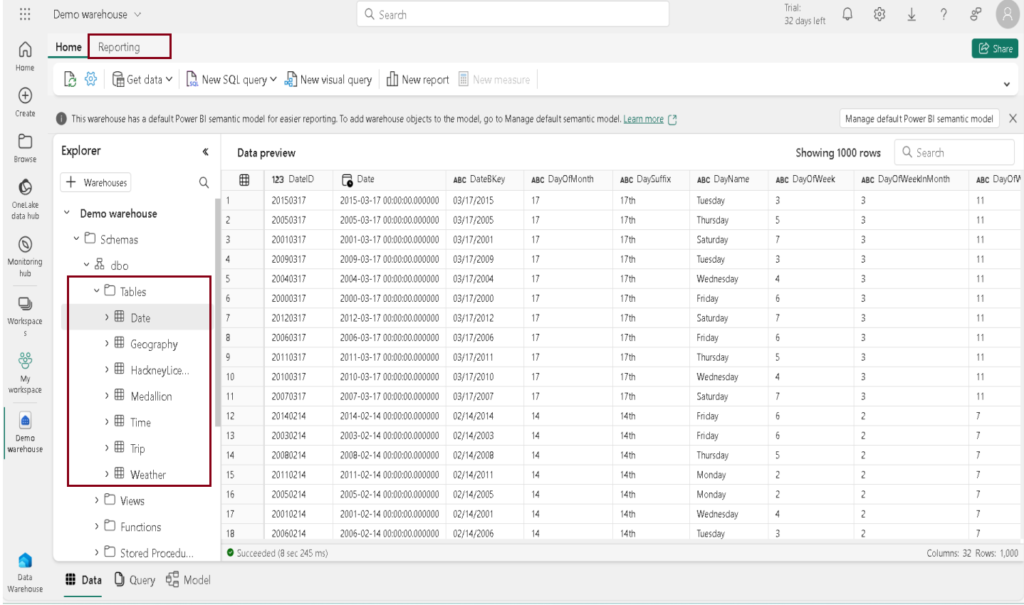
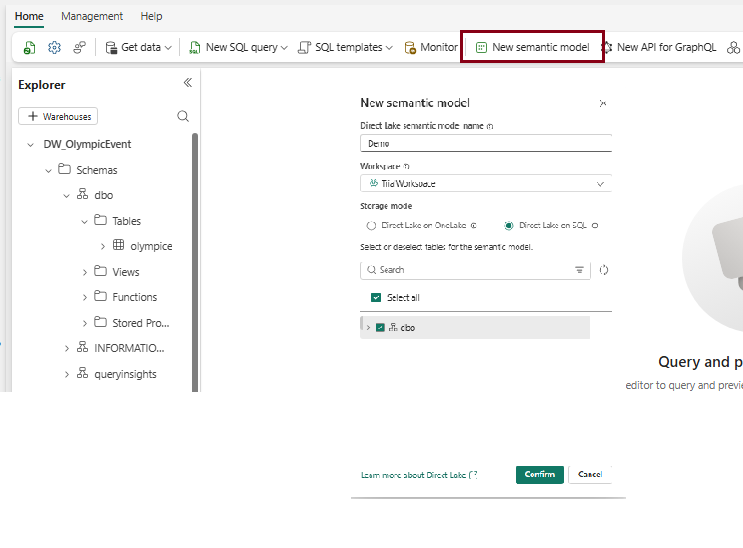
- Within the Reporting ribbon, select “New semantic model.”
- In the following dialog, designate the workspace and select the tables to be included, then proceed by clicking “Confirm.“
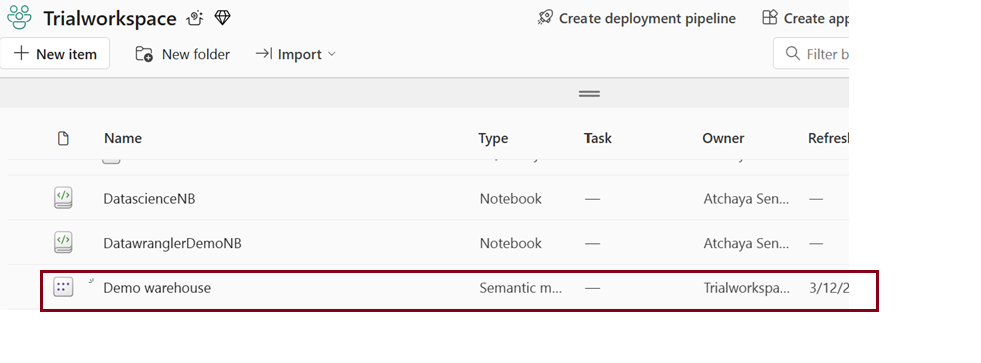
- The semantic model has been successfully created under the chosen workspace. Confirm the creation on the workspace page dedicated to the semantic model.
- After the semantic model is created, click New Report to create a Power BI report.
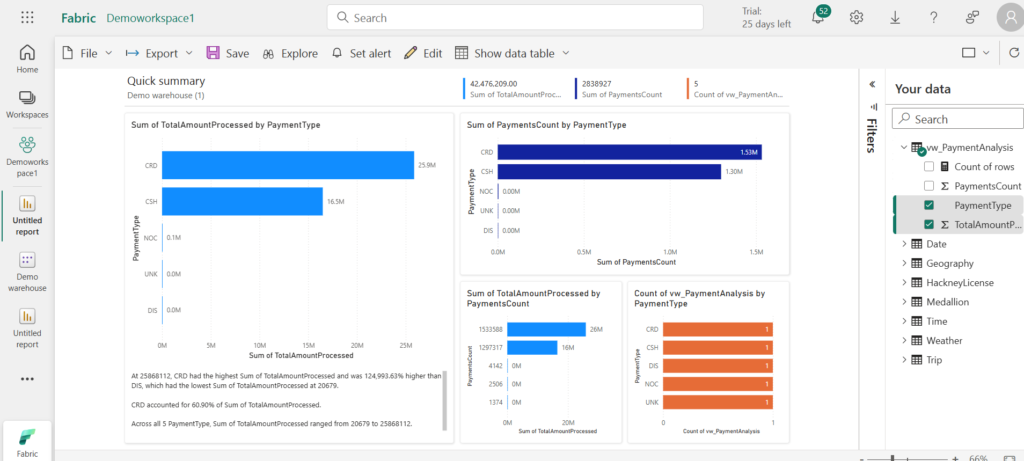
Power BI semantic model
When establishing a Warehouse or SQL analytics endpoint, an automatic creation of a default Power BI semantic model takes place, identifiable by the (default) suffix.
| Tags | Microsoft Fabric |
| MS Learn Modules | |
Test Your Knowledge |
Quiz |