
In earlier lessons, you learned how Databricks works with cloud storage such as Azure Data Lake Storage Gen2. You may also have seen paths such as dbfs:/, /dbfs/, /mnt/, and /Workspace/. These paths can look similar, but they do not all represent the same thing.
This lesson explains what DBFS means today, what DBFS root and DBFS mounts are, what workspace files are, and where each type of file should be stored in a modern Azure Databricks workspace.
The underlying Databricks file-system technology still exists, so seeing dbfs:/ does not automatically mean that a workload is using the deprecated DBFS root.

🚀 Learn It in 5 Minutes
Skip the long read.
See the key concepts in one easy-to-follow infographic.
Prerequisites
You should have an Azure Databricks workspace and basic familiarity with notebooks and Unity Catalog.
- Azure Databricks workspace.
- A notebook and available compute.
- Permission to create or use workspace files.
- Unity Catalog access if you want to complete the volume comparison exercise.
This lesson explains the DBFS concepts you may encounter in existing Databricks projects and shows the modern ways to work with files in Azure Databricks. DBFS Root and DBFS mounts are deprecated and may be disabled in newer workspaces. Therefore, the hands-on exercise focuses on Workspace Files and Unity Catalog Volumes rather than creating or using DBFS Root of DBFS mount.
1. What Is DBFS?
DBFS stands for Databricks File System. Historically, DBFS provided a file-system abstraction that made it easier for Databricks workloads to interact with files in cloud storage.
The important modern distinction is that the word DBFS can refer to the broader Databricks file-system technology, while DBFS root and DBFS mounts refer to specific legacy storage patterns.
Microsoft Learn explicitly states that the deprecation warnings apply to DBFS root and DBFS mounts, not to every appearance of the dbfs:/ scheme.
| # Example of a DBFS-style path you may encounter dbfs:/path/to/file.csv |
| 💡 Note Do not treat every dbfs:/ path as evidence that you are using the old DBFS root. Unity Catalog volumes can also be accessed using a dbfs:/Volumes/… alias. Always identify what resource the path points to. |
Always identify the resource behind the path before deciding whether it represents a legacy design.
2. What Is DBFS Root?
DBFS root is a storage location provisioned as part of the workspace’s cloud storage architecture. It historically provided a convenient place for users and some workspace features to store files.
However, Microsoft Learn now states that DBFS root is deprecated and not recommended for new use. Databricks also recommends against storing production data, libraries, or scripts in DBFS root.
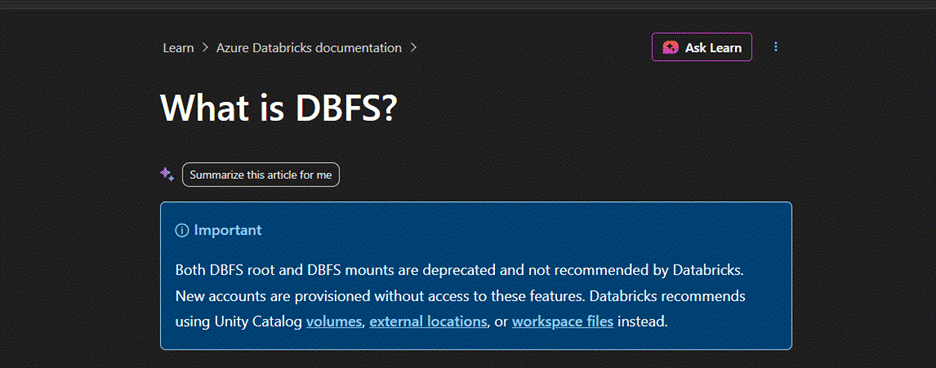
Source: Microsoft Learn
Important locations you may see in older DBFS documentation
| Location | Historical purpose | Current context |
| /databricks-datasets | Databricks-provided sample datasets. | Still available in supported environments; commonly used in tutorials. |
| /user/hive/warehouse | Default storage for legacy Hive metastore managed tables. | Legacy context, Unity Catalog is the modern governance model. |
| /FileStore | Files and libraries uploaded through older UI flows. | Primarily legacy behavior, modern UI uploads use workspace files or volumes. |
| /databricks-results | Files generated from full query-result downloads. | System/legacy location, not a general application data location. |
| /databricks/init | Legacy global init-script location. | Legacy; use supported init-script locations such as volumes or workspace files where appropriate. |
These locations are useful to recognise when maintaining existing solutions, but they should not generally form the storage architecture for a new Databricks implementation.
What Are DBFS Mounts?
A DBFS mount historically allowed cloud object storage to appear through a DBFS path such as /mnt/raw. For example, an older project might contain code such as dbutils.fs.mount().
| # Legacy example – shown only so you can recognize it dbutils.fs.mount( source=”wasbs://<container>@<storage-account>.blob.core.windows.net/”, mount_point=”/mnt/raw”, extra_configs={…} ) |
DBFS mounts are deprecated. Databricks recommends using Unity Catalog to govern access to cloud storage, typically through external locations, external tables, and volumes depending on the workload.
What Are Workspace Files?
Workspace files are files stored and managed in the Databricks workspace file system. They can include notebooks, source-code files, configuration files, libraries, small development files, and other supported workspace assets.
Microsoft Learn recommends workspace files for small files, primarily for development and testing, because workspace files have size restrictions.
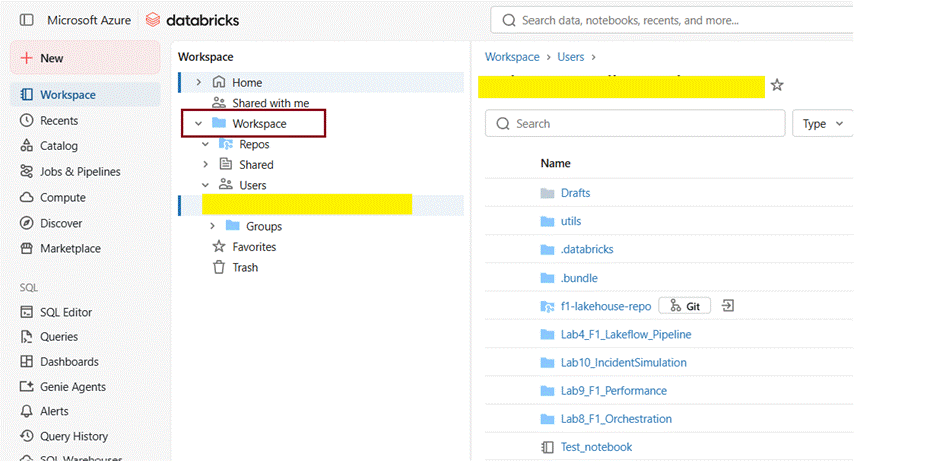
What Can Be Stored as a Workspace File?
- Python source files (
.py) - SQL, YAML, Markdown, and text files
- Small CSV or JSON files used for development/testing
- Python wheel files or other supported library artifacts
- Configuration or helper files used by development workflows
- Notebooks and other supported Databricks workspace assets
Workspace Files vs. Unity Catalog Volumes
This is one of the most important distinctions in this lesson. Both locations can contain files, but they serve different purposes.
| Use case | Workspace files | Unity Catalog volume |
| Notebook/source code | Yes – common use. | Not normally the primary location for application source code |
| Small development/test file | Yes. | Yes. |
| Production unstructured data | No -not recommended. | Yes – recommended governed option. |
| Large structured analytical datasets | No. | Usually use Unity Catalog tables rather than treating the dataset simply as files in a volume. |
| Large file-based or unstructured data | No | Yes, when a volume is appropriate for the workload |
| Central data governance | Workspace permissions and workspace controls. | Unity Catalog permissions and governance. |
| Cloud object storage data access | Not the main purpose. | Designed for governed file access. |
| Typical path | /Workspace/… | /Volumes/<catalog>/<schema>/<volume>/… |
A useful rule is: workspace files are mainly for code and development assets; volumes are for governed file-based data; Unity Catalog tables are normally preferred for structured analytical data.
Workspace Files vs. DBFS Root vs. Volumes
| Location | Modern recommendation | Typical purpose |
| Workspace files | Recommended for workspace assets and small development/test files. | Source code, notebooks, small files, supported libraries. |
| Unity Catalog volumes | Recommended for governed file-based data. | CSV, JSON, images, documents, ML artifacts, production files. |
| Unity Catalog external locations | Recommended governance object for authorised access to cloud object storage paths. | Foundation for external tables and external volumes and controlled cloud-storage access |
| DBFS root | Deprecated; avoid for new workloads. | Legacy workspace storage pattern. |
| DBFS mounts | Deprecated; avoid creating new mounts. | Legacy access to cloud object storage. |
An external location is not simply another folder where users should automatically store files. It is a Unity Catalog securable object that associates a governed cloud-storage path with a storage credential. External tables and external volumes can then use storage governed through that location.
Understanding the Main Path Formats
Databricks has several path styles. Learning what each one means will help you avoid many beginner mistakes.
| Path | Meaning | Example |
| /Workspace/… | Workspace file path. | /Workspace/Users/<user-folder>/data.csv |
| file:/Workspace/… | URI form required by several Spark, SQL and dbutils.fs workspace-file operations | file:/Workspace/Users/<user-folder>/data.csv |
| /Volumes/… | POSIX-style path to a Unity Catalog volume. | /Volumes/main/default/my_volume/data.csv |
| dbfs:/Volumes/… | DBFS URI alias for a Unity Catalog volume. | dbfs:/Volumes/main/default/my_volume/data.csv |
| /dbfs/… | FUSE-style path for legacy DBFS resources where supported | /dbfs/mnt/legacy_path |
| abfss://… | Direct ADLS Gen2 URI. | abfss://raw@<storage>.dfs.core.windows.net/data/ |
Path syntax depends on the storage mechanism, runtime, compute access mode, and tool you are using.
Do not copy a path from a Spark example into pandas, dbutils.fs, SQL, or shell code and assume that exactly the same syntax will work.
Create and Use a Workspace File
In this exercise, we will create a small CSV file in your workspace and read it from a Databricks notebook. This is a development/testing example, not a recommended production data-storage pattern.
Step 1: Open the Databricks Workspace
- Sign in to your Azure Databricks workspace.
- Open the Workspace browser from the left navigation.
- Navigate to your user folder or another folder where you have permission to create files.
- If your organisation uses Git folders, use the appropriate Git folder for source-controlled project files where applicable.
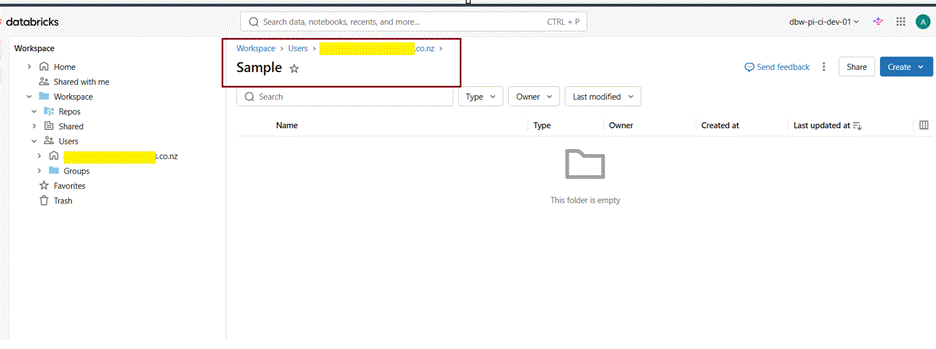
Step 2: Create a Small CSV File Locally
Create a file named sampletest.csv on your computer with the following contents:

Using explicit sample data makes it easier to confirm that the same file is being read correctly through Spark and pandas later in the exercise.
Step 3: Upload the File as a Workspace File
- In the Databricks workspace browser, open the folder where you want to store the file.
- Use the workspace file upload option available in your current Databricks UI.
- Select sampletest.csv.
- Wait for the upload to finish.
- Confirm that the file appears in the workspace folder.
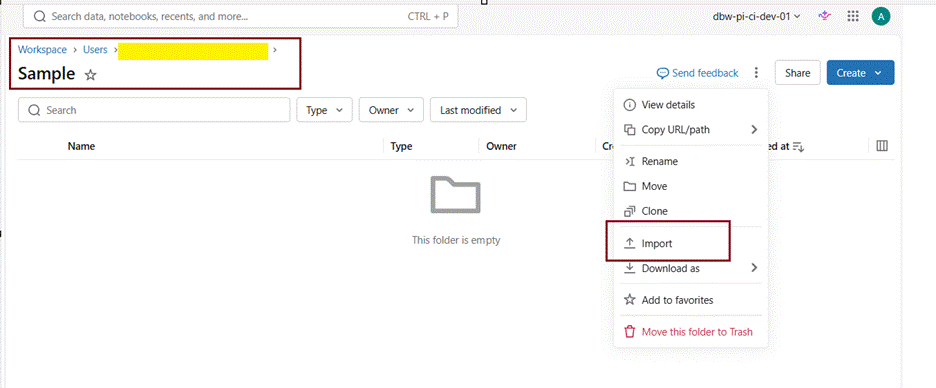

Step 4: Read the Workspace File from a Notebook
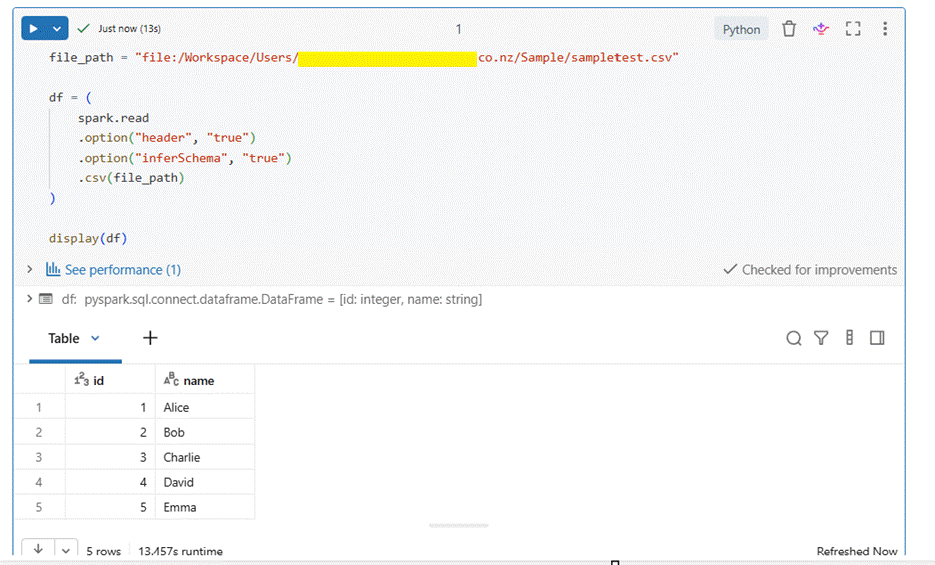
Create or open a notebook in the same workspace. Use the file:/Workspace/… path. Replace <user-folder> with the actual folder where you uploaded the file.
| file_path = “file:/Workspace/Users/<user-folder>/sampletest.csv” df = ( spark.read .option(“header”, “true”) .option(“inferSchema”, “true”) .csv(file_path) ) display(df) |
Run the cell. You should see the four sample records from sampletest.csv.
Step 5: List Workspace Files
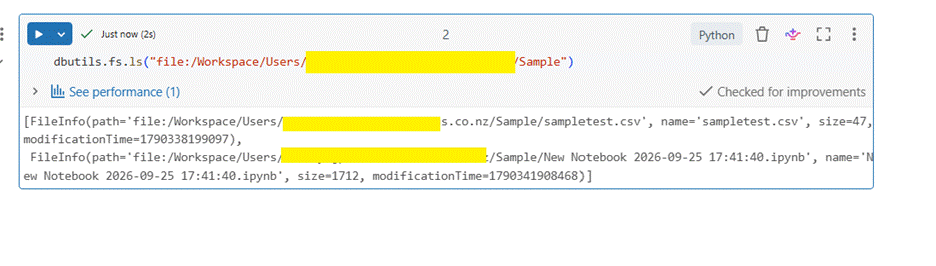
You can inspect workspace files using supported file operations. For example, Databricks documents dbutils.fs.ls with a file:/Workspace/… path for workspace-file access. The output of dbutils.fs.ls showing the workspace file in the selected folder.
| dbutils.fs.ls(“file:/Workspace/Users/<user-folder>/”) |
Step 6: Read the Same File with pandas
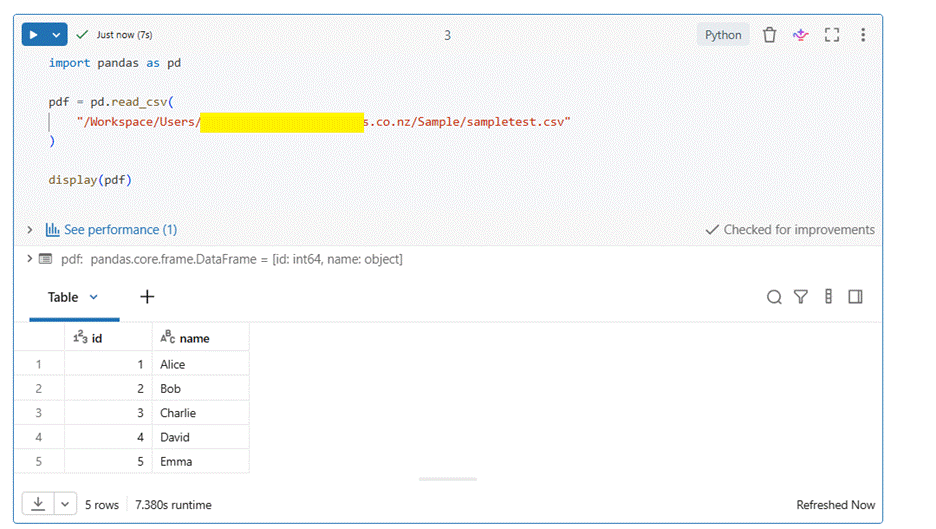
Workspace files are also useful when a small local-style file is needed by Python code. For example:
| import pandas as pd pdf = pd.read_csv( “/Workspace/Users/<user-folder>/lesson20_people.csv” ) display(pdf) |
Run the cell and confirm that pandas return five records.
Important Workspace File Limitations
Workspace files are convenient, but they are not designed to behave like a distributed production data lake.
Some important limitations include:
- Workspace files have a maximum individual file size of 500 MB.
- Databricks recommends using them only for small data files used primarily for development and testing.
- Spark executors cannot write directly to workspace files.
- Some workspace-file behaviours vary by Databricks Runtime and compute access mode.
- Long-running compute or jobs can also have workspace-file access considerations.
These are additional reasons why production datasets should usually be stored through Unity Catalog-governed tables, volumes, and cloud object storage rather than /Workspace.
What You Should NOT Do with Workspace Files
- Do not use workspace files as the primary storage location for large production datasets.
- Do not use workspace files as a replacement for ADLS Gen2.
- Do not assume workspace files provide the same governance model as Unity Catalog data objects.
- Do not store sensitive information in a development file simply because it is inside the workspace.
- Do not use workspace files as a substitute for source control when your project requires Git-based collaboration.
- Do not design distributed Spark processing around writing large datasets into
/Workspace.
Understanding DBFS in a Modern Unity Catalog Workspace
In a modern workspace, you may still encounter the dbfs:/ scheme. For example, a Unity Catalog volume can be referenced through a dbfs:/Volumes/… alias. This does not mean the volume is stored in the deprecated DBFS root.
| # Unity Catalog volume example volume_path = “dbfs:/Volumes/main/default/my_volume/sample.csv” df = spark.read.option(“header”, “true”).csv(volume_path) |
The resource after the prefix matters more than the mere presence of the text dbfs:.
Hands-On Comparison: Workspace File vs. Volume
If you completed Lesson 19, you already have a Unity Catalog volume or can create one. Use a small CSV file to compare the two approaches.
| Question | Workspace file | Unity Catalog volume |
| Where is it managed? | Workspace. | Unity Catalog. |
| Best for | Code and small development/test files. | Governed file data. |
| Typical access path | /Workspace/… or file:/Workspace/… | /Volumes/… or dbfs:/Volumes/… |
| Large production dataset? | No. | Yes, subject to architecture and governance. |
| Structured analytical data? | No | Usually model as a Unity Catalog table rather than simply storing files in a volume. |
| Central data permissions? | Workspace/file permissions. | Unity Catalog privileges. |
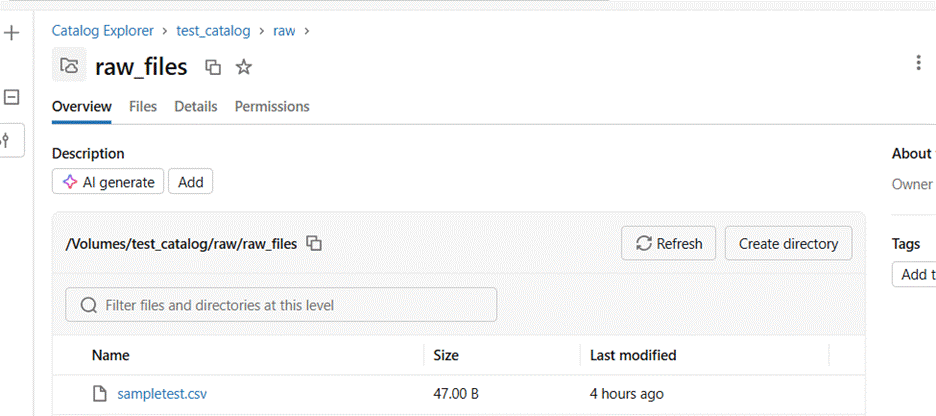
Step 7: Create a Small File in a Unity Catalog Volume
If you completed Lesson 19, open the volume created there. Otherwise, use any volume provided by your administrator.
- Open Catalog Explorer.
- Navigate to your catalog, schema, and volume.
- Upload sampletest.csv to the volume.
- Confirm the file appears under the volume.
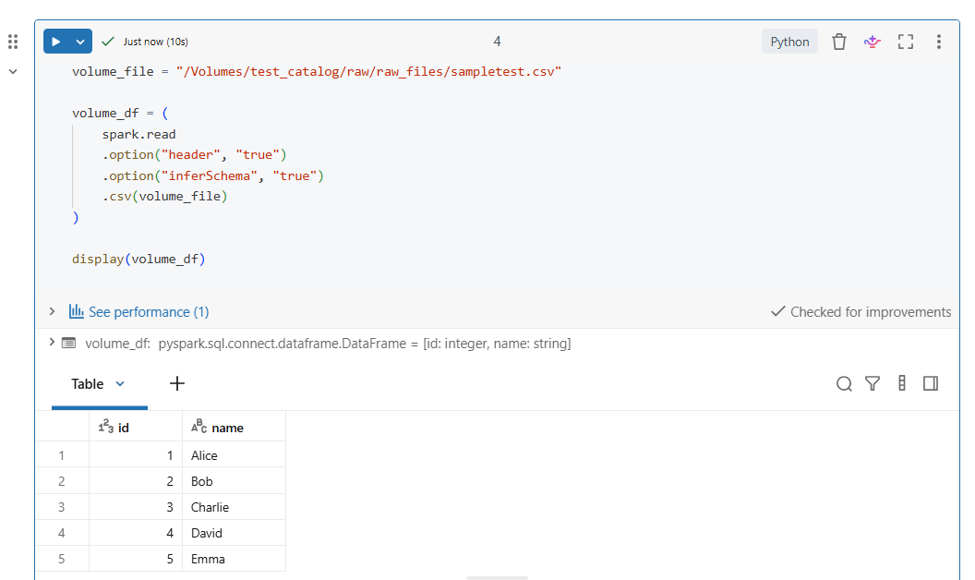
Step 8: Read the Volume File
volume_file = "/Volumes/<catalog>/<schema>/<volume>/lesson20_people.csv"

volume_df = (
    spark.read
    .option("header", "true")
    .option("inferSchema", "true")
    .csv(volume_file)
)

display(volume_df)
Which Storage Location Should I Choose?
Use this simple decision guide when starting a Databricks project.
| You need to store… | Prefer |
| Notebook | Workspace notebook / Git folder. |
| Python source code | Workspace files or Git folder, depending on the project workflow. |
| Small development/test CSV or JSON | Workspace files or a Unity Catalog volume, depending on the purpose. |
| Production CSV/JSON/images/documents | Unity Catalog volume backed by governed cloud storage. |
| Structured production analytical data | Unity Catalog managed or external tables |
| External ADLS Gen2 data | Unity Catalog external location and appropriate volume/table architecture. |
| Large file-based/unstructured production data | Unity Catalog Volume or appropriate governed cloud storage architecture |
| Legacy mounted storage | Plan migration to Unity Catalog external locations/volumes. |
The important distinction is between data stored as analytical tables and data that genuinely needs file-based access. Not every production dataset should automatically become a Unity Catalog volume.
DBFS Migration Mindset
If you join an existing Databricks project, you may find paths such as /mnt/raw or data stored under DBFS root. Treat these as migration candidates rather than patterns to copy into a new project.
Microsoft’s current guidance maps common legacy uses to newer options: use workspace files for workspace-oriented code and small files, Unity Catalog external locations for governed cloud storage access, and Unity Catalog volumes for file-based data that needs governed file access.
Troubleshooting
| Problem | What to check |
| Workspace file cannot be found | Check the exact /Workspace path and confirm the file exists in the workspace folder. |
| Spark cannot read the workspace file | Use the documented file:/Workspace/… URI form and verify workspace-file support for your runtime. |
| dbutils.fs does not behave as expected with workspace files | Review the documented limitations; workspace files are not equivalent to DBFS paths. |
| Volume file cannot be read | Check Unity Catalog permissions such as USE CATALOG, USE SCHEMA, and volume read privileges. |
| /mnt path works in an old project but not in a new workspace | DBFS mounts may be disabled because they are deprecated. Migrate to Unity Catalog. |
| Library stored in DBFS cannot be used | Move the library to a supported workspace-file or volume location or use a package repository. |
| Large file cannot be created in /Workspace | Workspace files have a 500 MB per file limit. Use an appropriate governed data location instead. |
| Spark worker cannot write a workspace file | Executors cannot write to workspace files; use appropriate distributed storage |
Real-World Scenario
Imagine a data engineering team has three types of assets. First, the team has Python helper code used during development. Second, the team has small configuration and sample CSV files used to test notebooks. Third, the team has millions of production customer records stored in ADLS Gen2.
A sensible modern design separates these responsibilities. Source code and small development assets can live in workspace files or Git-managed folders. Structured production customer data should normally be represented through Unity Catalog-managed or external tables, while file-based production assets can use volumes where file semantics are required. The team should not introduce a new DBFS mount simply because an older project used one.
Key Takeaways
- DBFS stands for Databricks File System and remains a platform concept.
- DBFS root and DBFS mounts are deprecated and not recommended for new workloads.
- Workspace files are workspace-managed files suitable for code and small development/test files.
- Unity Catalog volumes are the modern governed option for file-based data.
- Unity Catalog external locations govern access to cloud object storage paths.
- Unity Catalog tables are generally the preferred abstraction for structured analytical datasets.
- A
dbfs:/path does not automatically mean the deprecated DBFS root is being used. - Workspace files have important size and distributed-processing limitations.
- Always choose storage based on the asset type, size, governance requirements, access pattern, and environment.
Conclusion
DBFS is an important Databricks concept, but the recommended way to work with files has evolved. For new implementations, do not build your architecture around DBFS root or DBFS mounts.
Use workspace files for workspace-oriented assets and small development/test files. Use Unity Catalog volumes for governed file data that requires file-based access, Unity Catalog tables for structured analytical data, and external locations to govern access to external cloud-storage paths. Understanding this distinction will help you read older Databricks projects without accidentally copying legacy patterns into new solutions.
This lesson intentionally uses the current terminology from Microsoft Learn: workspace files, Unity Catalog volumes, external locations, DBFS root, and DBFS mounts. DBFS root and DBFS mounts are presented as legacy/deprecated concepts rather than recommended implementation patterns.
| Tags | Understanding DBFS and Workspace Files |
| Databricks Link | |
| Microsoft Link | |
|
Test Your Knowledge |
Quiz |